POS feature
Barcode label printing that matches the price at the till
Print shelf and pack labels straight from your item master, at the price the counter will actually charge, in the size your labels come in. Read weight and price labels from your weighing scale at the counter, so loose goods bill as fast as packets.
Start with a 14-day free Fininvo ERP trial, then add POS counters. Paid plans start after the trial.

 Shelf labelsCounter price, MRP, unit
 Scale labelsWeight or price embedded
 Scan readyWidth checked
Why labels matter
A barcode that will not scan costs more than a label
Labels fail quietly. The shelf says one price and the till charges another, because the label was printed before the price list changed. A barcode is too dense for the roll it was printed on and the cashier ends up typing codes. A carton label carries the piece barcode, so the customer is billed for one piece instead of twelve. Each one is a small loss, repeated every day.
Fininvo prints labels from the same source the counter sells from. The label data is requested from the server at the price the counter charges, including the MRP and the unit. The barcode type is chosen from the code itself, the width is checked against the label size, and packs print their own barcode. This works the same for a kirana shelf, a supermarket aisle, a hardware bin or a fashion rack.
 Shelf label
 Garment tag
 Pack label
Shelf labels
Pick items, choose a size, print
On the shelf labels screen, add the items you want, optionally choose a pack code, and set how many copies of each, from 1 to 500, up to 2,000 labels in one print. Choose the label size, preview the sheet or roll, then print.
For each label, Fininvo uses EAN-13 when the item code is a valid 13-digit number with the right check digit, and Code 128 otherwise. Before printing, a density check warns when a barcode is too long for the label width and may not scan, based on a minimum bar width a typical 203 dpi label printer can produce.
- 1 to 500 copies per item
- Up to 2,000 labels per print
- Pack code for carton labels
- Preview before print
- Warning when a barcode is too dense
Sizes
Label sizes and what fits on them
Pick the size your labels come in. Larger labels leave room for the MRP line and a longer Code 128 barcode.
| Size | Typical use | Notes |
|---|---|---|
| A4 sheet, 3 by 8 (70 by 37 mm) | Shelf edge labels from an office printer | 24 labels per sheet |
| 38 by 15 mm | Small jewellery, cosmetics and spares | No room for an MRP line |
| 38 by 25 mm, 38 by 38 mm | Packets, jars, small boxes | Short codes fit best |
| 50 by 25, 50 by 30, 50 by 50 mm | Grocery shelves, garments, hardware bins | Common roll sizes |
| 75 by 50, 100 by 50 mm | Cartons and shelf strips | Room for longer Code 128 |
| 100 by 150 mm | Carton and dispatch labels | Largest size |
 Weighed items
- Weight label
 Unknown code
Weighing scale barcodes
Scan the label your scale prints
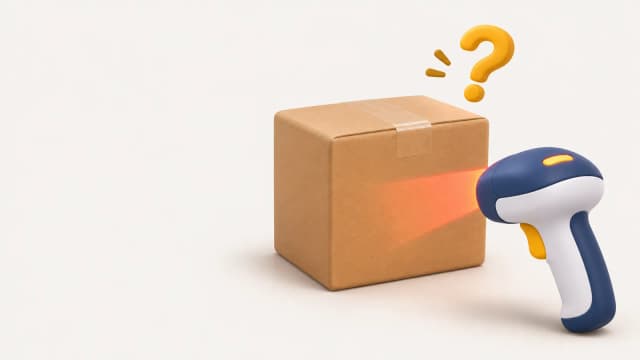
Supermarkets, sweet shops and vegetable counters weigh goods on a label-printing scale. That label carries a barcode starting 20 to 29, with the item code and either the weight or the price inside it. In the counter studio, set up each format once: the prefix, whether the label carries weight or price, and whether the item code uses 4, 5 or 6 digits. The item code is the item's SKU, so there is no separate PLU list to keep in sync.
When the cashier scans the label, the counter reads the weight in kilograms to three decimals, or the price to two decimals and works out the quantity from the item's price per unit. A test a label box lets you scan a sample during setup. The server reads every scanned label again, and a label whose quantity does not match its barcode is refused.
- Prefix 20 to 29
- Weight or price embedded
- Item code of 4, 5 or 6 digits, matched to SKU
- Test a label during setup
- Tampered labels refused by the server
Worked example
Reading two scale labels
A shop sets up two scale formats: prefix 21 carries weight, prefix 22 carries price. The item code is 5 digits. This is how the counter reads them.
| Label | Format | What the counter reads | What goes on the bill |
|---|---|---|---|
| 21 + item 00456 + weight | Weight embedded | Item with SKU 00456, weight 1.250 kg | 1.250 kg at the item's price per kg |
| 22 + item 00789 + price | Price embedded | Item with SKU 00789, label price from the barcode | Quantity worked out as label price divided by price per kg, to three decimals |
| 21 label with a changed quantity | Weight embedded | Server re-reads the barcode | Refused, the cashier rescans |
Across shop types
The same labels, different jobs

Supermarkets
Shelf edge labels on A4 sheets, and scale labels for fruit, vegetables and deli counters.

Bakeries and sweet shops
Weigh mithai into a box, print the scale label, scan it at the till.

Fashion and footwear
Small roll tags for each size and colour, scanned at billing and on exchange.

Hardware and spares
Bin labels for loose items and pack labels for boxes of screws and fittings.
Wholesale
Carton labels with the case barcode, so a scan adds a case, not a piece.

Kirana
Price labels for loose staples and own-packed items.
Printing
Prints through the dialog you already use
On the web, labels print through the browser print dialog, sized to the label with page settings, so any printer installed on the PC can print them. On the Windows desktop counter, the label panel uses the same sizes through the Windows print dialog. Install your roll label printer as a Windows printer and choose it like any other.
Fininvo does not send printer command languages such as TSPL or ZPL, and labels use fixed sizes rather than a template designer. Weight and price labels for loose goods are printed by your scale; Fininvo reads them at the counter.
From item to shelf
Label a new delivery in six steps
- 1
Receive stock
Goods arrive and the purchase is recorded in Fininvo ERP.
- 2
Check prices
Confirm the selling price and MRP on the item or price list.
- 3
Pick items
Add the items and packs to the labels screen with copies for each.
- 4
Choose size
Pick the roll or sheet size and fix any width warnings.
- 5
Print
Preview and print through the browser or Windows dialog.
- 6
Scan
At the counter, every label scans to the price on the shelf.
FAQ
Frequently asked questions
Which barcode types does Fininvo print?
EAN-13 when the item code is a valid 13-digit number with a correct check digit, and Code 128 for other codes made of printable characters. If a code cannot be printed as either, the label says so instead of printing a barcode that will not scan.
What label sizes are supported?
An A4 sheet of 24 labels (3 by 8, 70 by 37 mm) and label rolls of 38 by 15, 38 by 25, 38 by 38, 50 by 25, 50 by 30, 50 by 50, 75 by 50, 100 by 50 and 100 by 150 mm. The smallest size has no room for an MRP line. Fininvo warns when a barcode is too long for the label width to scan reliably.
Do I need a special label printer?
Labels print through the normal print dialog of your browser, or the Windows print dialog in the desktop app, so any printer that Windows or your browser can print to will work, from an office laser for A4 sheets to a roll label printer installed as a Windows printer. Fininvo does not send printer languages such as TSPL or ZPL directly.
Can the counter read labels printed by my weighing scale?
Yes. Set up your scale's label format once: the prefix from 20 to 29, whether the label carries the weight or the price, and how many digits the item code uses. When the cashier scans a scale label, the counter reads the item and the weight or price from the barcode. The server reads the barcode again and refuses a label whose quantity has been tampered with.
Does Fininvo read the weight directly from a connected scale?
Not today. Use a label-printing scale and scan its labels at the counter, or enter the weight. Direct reading of a scale connected to the counter is not offered yet.
Can I print a label for a box or carton?
Yes. If the item has a pack, such as a box of 12 with its own barcode, choose the pack code on the labels screen and the label carries the pack barcode and pack price. Scanning it at the counter adds one box.
14 days free, full access
Print your first shelf labels
Import your items, pick a label size and print a test sheet. Scale formats take a minute to set up. Stock and prices live in the same account.
Start with a 14-day free Fininvo ERP trial, then add POS counters. Paid plans start after the trial.