Kirana and general store POS
Kirana billing software with khata, loose items and fast barcode billing
Bill a queue of customers by barcode in seconds, sell rice and dal by the gram, keep a proper khata for regulars with credit limits and part payments, and take UPI or cash. Every bill updates your stock and your books.
Start with a 14-day free Fininvo ERP trial, then add POS counters. Paid plans start after the trial.
 KhataLimits and part payments
 Loose itemsBilled by the gram
 Fast scanKeyboard first counter
How a kirana really runs
A neighbourhood shop runs on speed and trust
A kirana counter handles two kinds of customer at once. The morning rush wants to pay and leave: a packet of milk, bread, a soap, scanned and paid by UPI in under a minute. The regulars want the same speed and something more: to take the month's groceries now and settle at salary time. Most shops serve the first with a billing machine and the second with a notebook, and the notebook is where money quietly goes missing.
Fininvo puts both on the same counter. A walk-in bill is scan, scan, pay. A regular is found by mobile number, the bill goes on their khata, and the balance is right the moment the bill closes. When they come to pay, the cashier records the cash against the oldest bills first, so no one has to work out which bill was paid. The owner sees who owes what, and for how long, without opening the notebook.
Because the counter is part of Fininvo ERP, the same sale reduces stock of every item and posts to the accounts. Purchases from your distributor, entered in the ERP, show up at the counter as stock, and the GST on every sale is already worked out when you sit down with your accountant.
Worked example
One month of a regular customer's khata
A family buys groceries on credit and pays in parts. Amounts are illustrative, in your company currency. Each payment clears the oldest open bill first, which is how the counter allocates it by default.
| Day | Entry | Bill | Paid | Balance |
|---|---|---|---|---|
| 1st | Bill 0412: atta, dal, oil, sugar (credit sale) | 1,840.00 | 1,840.00 | |
| 6th | Bill 0587: milk, biscuits, soap (credit sale) | 415.00 | 2,255.00 | |
| 10th | Cash received at counter, set against bill 0412 | 1,840.00 | 415.00 | |
| 14th | Bill 0702: rice 5 kg, tea (credit sale) | 960.00 | 1,375.00 | |
| 20th | Cash received, bill 0587 cleared, rest toward bill 0702 | 500.00 | 875.00 |
On the 20th the payment of 500.00 clears bill 0587 (415.00) and the remaining 85.00 goes toward bill 0702, leaving 875.00 open on that bill. Had every bill already been paid, the extra could have stayed on the account as an advance for the next purchase. The balances page would show this customer in the not yet due or 1 to 30 days bucket, depending on your terms, and the statement lists every line above.
- Credit sale
 Collect cash
 Find by mobile
Khata credit book
A khata that adds up, with limits you control
Every regular has a credit limit you set. When a credit sale would cross it, the counter stops and asks for a manager. The manager enters a PIN to allow it, the approval is recorded against the sale, and the PIN is never stored. You can also run a customer in warn mode, where the cashier sees the warning but can continue, or switch the check off for trusted accounts.
Payments are collected from the counter in cash, set against the oldest open bills first, or split across particular bills if the customer asks. Any extra can stay on the account as an advance. UPI or card payments against khata are recorded in ERP Payments so they reach the same balance. The balances page shows each customer in ageing buckets of not due, 1 to 30, 31 to 60, 61 to 90 and over 90 days, with a statement as PDF or CSV.
- Per customer credit limit
- Block, warn or off
- Manager PIN override, audited
- Oldest bill first collection
- Ageing buckets and statements
- WhatsApp reminders to customers who agreed
 Rice and atta
 Dal
 Sugar
 Oil and ghee
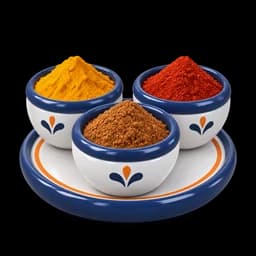 Masala
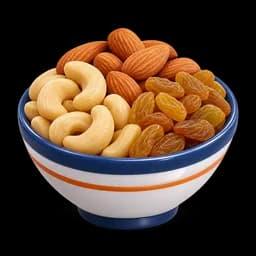 Dry fruits
Loose items and packs
Sell by the kilo, by the piece or by the box
Staples such as rice, atta, dal, sugar and dry fruits are often sold loose. Items set up in kilos or grams take decimal quantities, so 750 g of toor dal is billed as 0.750 kg at the kilo rate, with no rounding up to the nearest packet. Stock reduces by the same weight.
If your weighing scale prints barcode labels, the counter reads the weight or the price inside the label. A price label for half a kilo works out the quantity from the item rate, and the server checks every label, so a label edited by hand is refused. Packs work the other way round: a box of 12 soaps can have its own barcode and price, and scanning it takes 12 out of stock.
- Decimal quantities for kilo and gram items
- Weight and price barcode labels from your scale
- Labels checked by the server
- Packs with their own barcode and price
Fast billing
A counter built for the morning rush
Every common action is a key or a tap. An experienced cashier rarely touches the mouse.
Barcode first
Scan and the item lands on the bill; scan again for one more. F2 searches by name, F3 jumps back to the barcode box.

Hold and recall
F6 parks a bill while the customer fetches one more thing; F7 brings it back after serving the next person.

Favourites
Fast sellers without a barcode, such as eggs or loose tea, sit as favourites for one tap billing.

Phone as a second counter
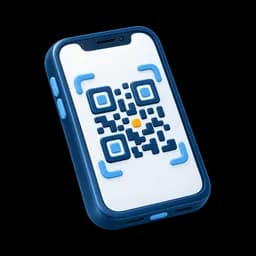
On a busy day, the Fininvo ERP mobile app scans with the camera and bills from a phone.
 UPI
- Cash
 Split
 Offline
 Sync
 Share bill
UPI, cash and offline
UPI and cash, and billing that keeps going
UPI is the default at most kirana counters. Connect your own POS machine to take card and UPI payments, or take cash; every payment is recorded against the bill. When a customer pays on your own UPI soundbox or a machine that is not connected, the cashier records the payment with its reference after checking it, and it is marked as unverified so the shift report shows the difference. Cash is taken with the change shown, and one bill can be split between cash and your machine.
When the internet drops, the Windows desktop app carries on with cash sales of the products already on the counter, and uploads them when the line returns. Khata credit sales and UPI wait for the connection, because both need the server to record a balance or a payment. That keeps the khata correct even on a bad network day.
- Card and UPI on your own POS machine
- Soundbox UPI recorded with its reference
- Cash with change and split payments
- Offline cash billing on Windows desktop
- Khata and UPI need a connection
A kirana day
From opening the shutter to the khata follow-up
- 1
Open the shift
Count the opening cash and open the register. Bill numbers continue from yesterday.
- 2
Serve the rush
Scan, hold, recall and take UPI or cash. Loose items go on by weight.
- 3
Bill the regulars
Find the customer by mobile and put the bill on khata within their limit.
- 4
Collect dues
Record cash against the oldest bills first when a regular comes to pay.
- 5
Close the day
Count the drawer. The shift report shows cash, UPI and khata sales separately.
- 6
Follow up
Check the ageing on the balances page and send WhatsApp reminders to customers who agreed.
FAQ
Frequently asked questions
What is khata in kirana billing software?
Khata is the credit book for regular customers who take goods now and pay later. In Fininvo a credit sale is billed to the named customer on account, the customer balance goes up, and later payments reduce it, oldest bill first. The balances page shows what each customer owes, how old the dues are, and a statement you can share.
Can I set a credit limit for a customer?
Yes. Each customer can have a credit limit. When a new credit sale would take the customer over it, the counter refuses the sale unless a manager enters their PIN to approve it. The override is recorded with who approved it, and the PIN itself is never stored.
How do I collect khata payments?
Open the collect payment dialog at the counter (F10 on a keyboard counter), find the customer and enter the cash received. The payment is set against the oldest open bills first, and any extra can be kept as an advance. UPI or card receipts against khata are recorded in ERP Payments. A manager can void a wrong receipt with a reason.
Can it bill loose items like rice, dal and sugar by weight?
Yes. Items sold by the kilo take decimal quantities, so 1.250 kg of rice is billed exactly. If your weighing scale prints barcode labels with the weight or price inside the barcode, scanning the label adds the right quantity, and the server checks the label so a changed quantity is refused. Pack sizes such as a box of 12 can have their own barcode and price.
Does kirana billing work without internet?
Cash sales of products already downloaded to the counter can continue offline on the Windows desktop app and are uploaded when the connection returns. Khata credit sales, UPI and card need a connection, because the customer balance and the payment must be confirmed by the server.
Can I send due reminders to customers?
Yes, on WhatsApp, to customers who have agreed to receive them, through the WhatsApp account your business connects and an approved message template. Reminders go out in scheduled batches within a budget you set. SMS reminders are not offered.
14 days free, full access
Start billing your kirana on Fininvo
Add your products with barcodes and GST rates, add your regular customers with their limits, and bill your first customer. Stock and accounts update on every bill.
Start with a 14-day free Fininvo ERP trial, then add POS counters. Paid plans start after the trial.