POS feature
Offline billing that keeps the queue moving
When the internet drops, the Fininvo Windows desktop counter and mobile app keep billing cash sales, save each bill on the device in sequence, and upload them when the line comes back. The owner decides how long and how much, and nothing is ever deleted to make room.
Start with a 14-day free Fininvo ERP trial, then add POS counters. Paid plans start after the trial.
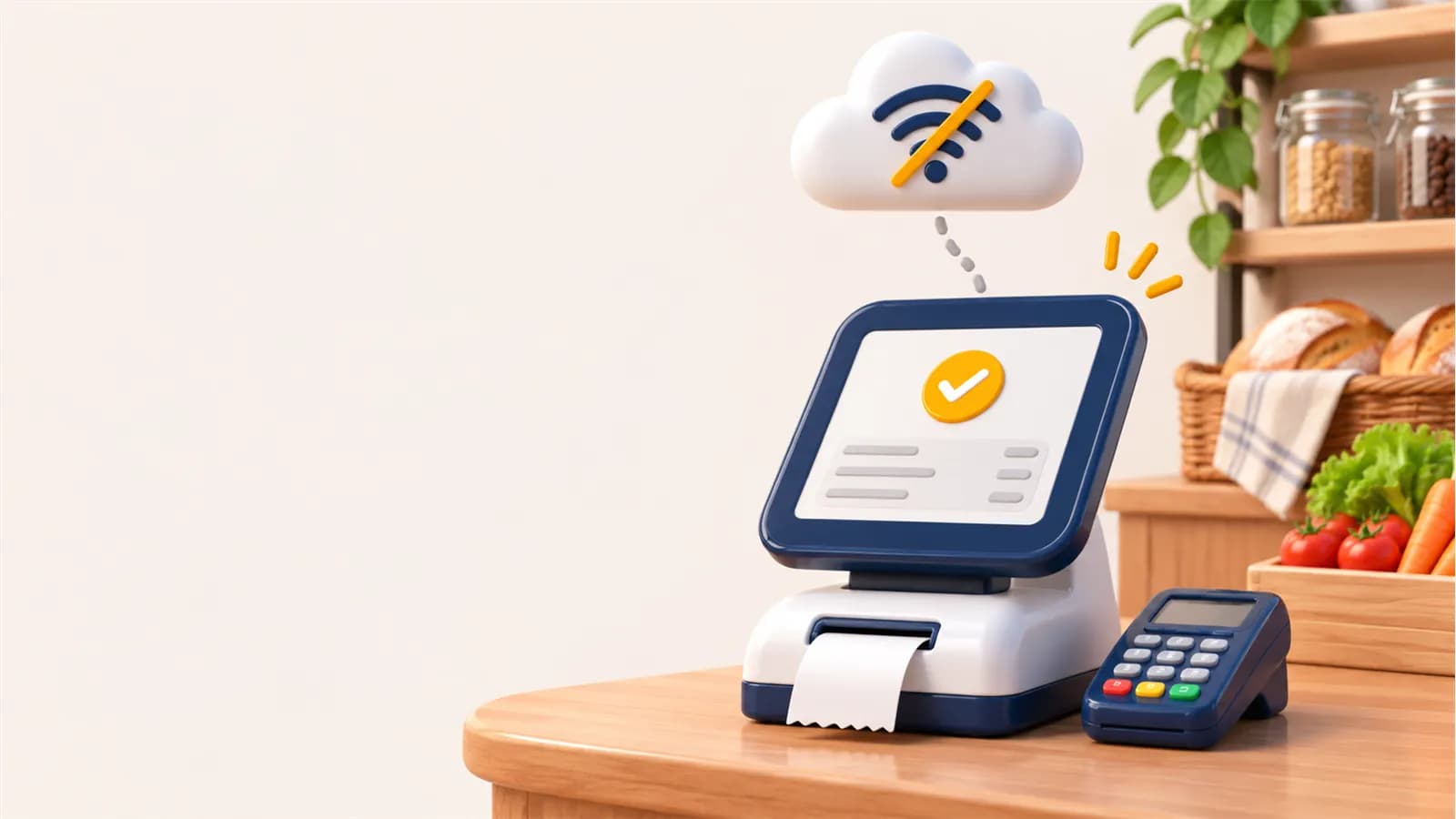
 Ready offlineStarted once a day
 Billing offlineSaved on the device
 UploadingAutomatic, retried
What offline really means
Offline billing is a promise, so it has rules
Every shop has had the moment: a queue at the counter, a customer holding cash, and the billing screen spinning because the broadband or the mobile data has gone. Software that simply says no loses the sale. Software that bills blindly creates duplicate bill numbers, sells stock it does not have and leaves the accountant to untangle it a week later.
Fininvo takes a middle path. Before going offline, a counter collects everything it needs to bill on its own: the signed catalogue and prices, the register settings, a reserved block of bill numbers and an offline permission with an end time. While offline it bills cash sales within the limits the owner set, signs each bill and saves it in encrypted storage on the device. When the connection returns the bills upload by themselves, and anything unusual is shown to a manager instead of being lost or quietly changed.
 Backup
 Local printing
 Cashier PIN
Windows desktop counter
Start the counter for offline billing once a day
The desktop app opens with two choices: Start online, or Start for offline billing. Starting for offline billing needs the internet for a moment, with an open shift, and downloads the full signed catalogue, the register settings, a block of bill numbers and the offline permission. After that the cashier can bill even if the line goes down for the rest of the day, up to the period the owner allows.
Each bill shows where it is: saved on this PC, sending, sent or needs review. The cash receipt, bill number, stock movement and cashbook entry are saved together, so a power cut cannot leave half a bill. Receipts and kitchen tickets print locally to a USB or network printer. The app keeps an encrypted backup every 15 minutes, and offline billing pauses if the last backup is too old or the disk is nearly full, rather than risk losing bills.
- Start online or start for offline billing
- Signed catalogue and number block downloaded
- Bill states on screen
- Local printing to USB or network printers
- Encrypted backup every 15 minutes

 Sync screen
- Ready offline
 Back online
Mobile app
An offline queue in your pocket
On the Fininvo ERP mobile app, each offline sale, its payment, its place in the upload queue and the next bill number are saved in one step in an encrypted database on the phone. A status chip at the top of the counter says Online, Online with bills to upload, Offline with bills to upload, or Upload only.
Tap the chip to see the sync screen: last sync, last backup, how many bills and how much money are waiting, when the offline period ends and how many bill numbers are left. Back up now saves an encrypted copy, and a needs attention list keeps any bill that could not be accepted so it can be exported and dealt with. On the phone, an offline receipt shows on screen with its bill number; printing and sending a digital receipt wait until the sale has uploaded.
- Sale, payment, queue and number saved together
- Status chip with pending count
- Sync screen with offline end time and numbers left
- Back up now and needs attention list
- Print or share after upload
Owner controls
The limits the owner sets
Offline billing is off until the owner switches it on in the outlet's counter settings. These are the controls, with the range the product allows and the value a new outlet starts with.
| Setting | What it controls | Range | Starts at |
|---|---|---|---|
| Offline billing | Whether this outlet can bill offline at all | On or off | Off |
| Offline period | How long a counter may bill without connecting | 1 to 72 hours | 12 hours |
| Catalogue age | How old the downloaded prices may be before new sales stop | 1 to 72 hours | 24 hours |
| Largest bill | Optional cap on the value of one offline bill | Any amount | No cap |
| Bill number block | How many numbers each counter reserves | 50 to 2,000 | 200 |
| Free storage | Space the device must keep free | 50 to 2,000 MB | 200 MB |
| Pending warning | When to warn that many bills are waiting | 1 or more | 100 |
| Discounts offline | Whether cashiers may give discounts while offline | On or off | Off |
The offline period also cannot run past the end of your subscription or trial, and on the desktop counter it cannot outlast the cashier's signed-in session.
Be precise
What works offline, and what needs the internet
A counter that knows its limits tells the cashier before the customer is waiting. This is how Fininvo splits the work.
| Works offline | Needs the internet |
|---|---|
| Cash sales from the downloaded catalogue | Card and UPI payments on your connected POS machine, and payments recorded with a reference |
| Items sold by the pack or box | Credit sales, gift cards, store credit, loyalty points and advances |
| Services, and stocked goods where the company allows selling below zero | Offers and coupons, and manager approvals |
| Business buyers in another state, where the owner has allowed it | Loading an ERP quotation or sales order into the bill |
| Receipts and kitchen tickets on the desktop counter | Factory outlet pricing and regulated pharmacy items |
| Single-device restaurant orders on the desktop counter | First cashier sign-up, permission changes, catalogue refresh and starting the offline period |
When the line comes back
Upload, check and review, without losing a bill
Automatic upload
Bills upload in the background and retry with growing gaps. A bill sent twice is recorded once.
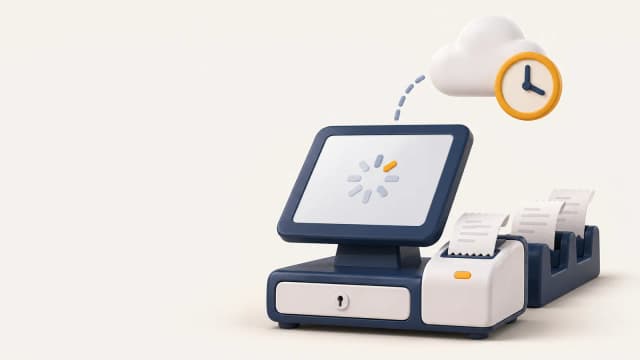
One bill at a time
Each bill is checked on its own, so one problem never blocks the bills behind it.

Review, not rejection
A changed price, stock below zero, a late bill after shift close or a clock that looks wrong is accepted and flagged for a manager.

Signed by the device
Every offline bill is signed by the device. Altered bills, reused numbers or numbers outside the block are refused.
- Devices
 Restore
 Number blocks
Owner view
See every offline device from the office
The devices screen in Fininvo lists each counter that can bill offline with its last check-in, how many bills and how much money are waiting to upload, its last sync and backup, and when its offline period ends. If a phone or PC is lost, choose revoke offline selling and give a reason. The device stops at its next check-in; if it never connects again, it can bill at most until its current offline period ends.
Unused bill numbers on a revoked, restored or reinstalled device are fenced off, and the owner can see which numbers were never issued, so a gap in the series has an explanation. Only one offline install is allowed per register at a time.
- Pending bills and amount per device
- Last sync, backup and offline end time
- Revoke with a reason
- Never-issued numbers traced
- One offline install per register
Restaurants
A single device keeps service running
A restaurant outage is harder than a shop outage, because several people touch one order. On the Windows desktop counter, a restaurant can keep creating new orders and printing kitchen tickets locally on that one PC, and settle them with the sale when the guest pays. Those orders stay on that PC; other phones, waiters and kitchen screens do not see them until the connection returns.
Several devices sharing the same tables while offline is not supported, because it would need a local hub at the outlet. If you need cover during an outage, plan one billing device per section and let the kitchen work from printed tickets. The full restaurant counter, with tables, the kitchen display and QR ordering, runs online.
An outage, step by step
From line down to bills uploaded
- 1
Morning start
Open the shift and start the counter for offline billing while the internet is up.
- 2
Line drops
The status changes to offline. Cash billing carries on from the downloaded catalogue.
- 3
Bills saved
Each bill takes the next reserved number, is signed and is saved in encrypted storage.
- 4
Limits respected
Payments that need a connection are refused up front; the offline period and bill cap apply.
- 5
Line returns
Bills upload by themselves, one at a time, retried until they are through.
- 6
Manager review
Anything unusual sits in the review queue. Sales, stock and GST are in the ERP.
FAQ
Frequently asked questions
Which Fininvo counters can bill without internet?
The Windows desktop counter app and the Fininvo ERP mobile app on Android and iOS can keep billing through an outage. The browser counter cannot: when it loses the connection it says so and points the cashier to the app. Offline selling is switched on by the owner per outlet and is part of the plan you buy.
How long can a counter stay offline?
The owner sets the limit, from 1 to 72 hours, with 12 hours as the starting value. The offline period also cannot run past the end of the subscription or trial, and on the desktop it is capped by the signed-in cashier session. When the period ends, the counter needs to go online once before it can bill offline again.
Which payments can I take offline?
Cash. Card and UPI payments on your connected POS machine need the internet, and so do credit (on account), gift cards, store credit, loyalty points and customer advances, because each of them checks a balance on the server. The counter tells the cashier which payment needs a connection instead of failing at the end.
What about bill numbers when two counters bill offline?
Each counter gets its own block of numbers from the same series the online counter uses, before it goes offline. Two devices can never issue the same number, and when a block runs low it is topped up on the next connection. In the last days of the financial year the counter also receives numbers for the next year.
What happens to offline bills when the internet comes back?
They upload on their own, retrying with growing gaps until they are through. Each bill is checked on its own, so one problem never holds up the rest, and a bill sent twice is recorded once. A bill with something to look at, such as a price that changed or stock that went below zero, is accepted and flagged for a manager to review rather than thrown away.
Can a restaurant keep taking orders offline?
On a single device, yes: the Windows desktop counter can create new orders and print kitchen tickets locally and settle them with the sale. Several devices sharing tables during an outage is not supported, so plan one billing device per section if you need cover.
14 days free, full access
Keep billing when the internet does not
Install the Windows desktop counter or the Fininvo ERP mobile app, switch on offline billing for your outlet and set your limits. The same account runs your accounts and stock.
Start with a 14-day free Fininvo ERP trial, then add POS counters. Paid plans start after the trial.