Fininvo POS
POS billing software for shops, restaurants and services
A fast GST billing counter that runs in the browser, on a phone and on a Windows PC that keeps selling offline. Every bill updates stock and posts to your Fininvo ERP books, so the shop floor and the accounts never disagree.
Start with a 14-day free Fininvo ERP trial, then add POS counters. Paid plans start after the trial.
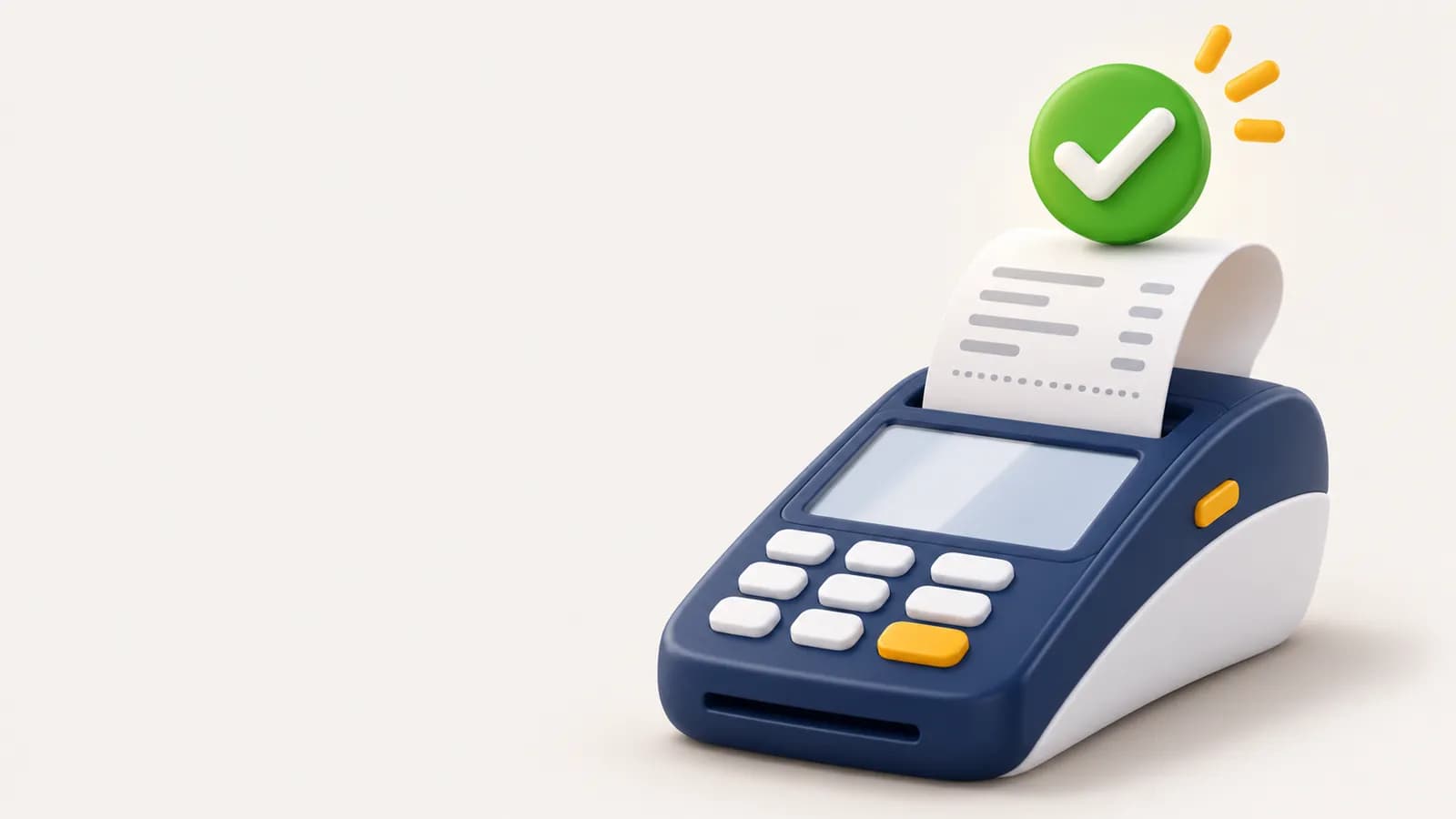
 Your machine and cashSplit one bill across methods
 ReturnsCredit notes and exchanges
 OfflineWindows app keeps billing
What it is
One counter, connected to the rest of the business
Most small businesses run billing in one program and accounts in another, then spend the month end matching the two. Fininvo POS removes that step. It is the selling screen of Fininvo ERP: the products, prices, tax rates, customers and stock you keep in the ERP are the ones the cashier sees, and every completed bill comes back as a posted sale with its stock movement and journal entry.
The counter is designed for speed at a busy till. Scan a barcode or search by name, change quantities with the keypad, attach a customer by mobile number, and take payment in a few taps. Function keys cover the common actions on a keyboard counter, from search and hold to return and cash drawer, so an experienced cashier rarely needs the mouse.
You set up outlets and registers once. Each register has its own bill numbering, its own shift and its own cash drawer, and an owner can see every outlet from one login. Staff can sign in to a counter with a PIN, and roles decide who can give discounts, void lines or open the drawer without a sale.
Built for your shop
Shop types Fininvo POS supports
When you set up an outlet you choose its shop type. The counter then shows the tools that trade needs and hides the rest, so a pharmacy counter and a restaurant counter do not look the same.
 Kirana and general storeFast scan billing, loose items sold by weight, and a khata for regular customers who pay later.
 SupermarketSeveral counters on one outlet, weighed produce with printed labels, and offers applied at the till.
 Restaurant and cafeTables, kitchen order tickets, a kitchen display, split bills and QR table ordering.
 Bakery and sweet shopCounter sales by piece or weight, plus advance orders for cakes with a deposit taken up front.
 Medical storeBatch and expiry picked at the counter, earliest expiry first, with a near-expiry report.
 Fashion and footwearSize and colour grids, salesperson on each line, and exchanges against the original bill.
 Electronics and mobilesIMEI and serial number capture, warranty printed on the receipt, and repair job tracking.
 Hardware and sparesSell by unit or by box, customer price lists for trade buyers, and credit sales.
 Wholesale and distributorCase rates, on-account credit, beats and B2B orders taken against ERP sales orders.
 Factory outletGraded stock such as seconds, and replenishment from the factory through ERP stock transfers.
 Salon and servicesAppointments, service packages, staff commission and online booking.
At the counter
Counter tools that keep the queue moving
The actions a cashier uses a hundred times a day are one tap or one key away.

Fast scan
Scan a barcode and the item lands on the bill. Scan again to add one more.

Hold and resume
Park a bill while a customer fetches one more item, serve the next person, then resume it.

Walk-in or known customer
Bill a walk-in, or find a regular by mobile number and add a new customer in seconds.

Discounts with limits
Cashiers give discounts within their limit. Anything above it needs a manager approval.

Favourites
On the Windows desktop app, fast sellers sit on keys 1 to 9 for one-key billing.
Drawer control
Opening the drawer without a sale is recorded on the shift, so it shows up at close.

Cash drops
Move surplus cash to the safe during the day and the expected drawer total follows.
Customer display
A second screen shows the customer the cart and the total as the bill is built.
Run it anywhere
Web, mobile and desktop, with offline selling
Use the device that fits each counter. All three share the same outlet, register, catalogue and receipt setup.
Web counter
Open the counter in a browser on any PC or touch screen. It works with receipt printers, barcode scanners and cash drawers, and can show the cart and total on a second customer-facing screen.

Mobile POS
The Fininvo ERP mobile app has a phone-sized counter for line busting, home delivery and small stalls. Scan with the camera, take cash or payments on your own POS machine and, on Android, print to a Bluetooth thermal printer.
Windows desktop, offline
The desktop app keeps billing through an internet outage within limits the owner sets. Offline sales are signed, stored on the PC with an encrypted backup, and uploaded once the line is back.
GST billing
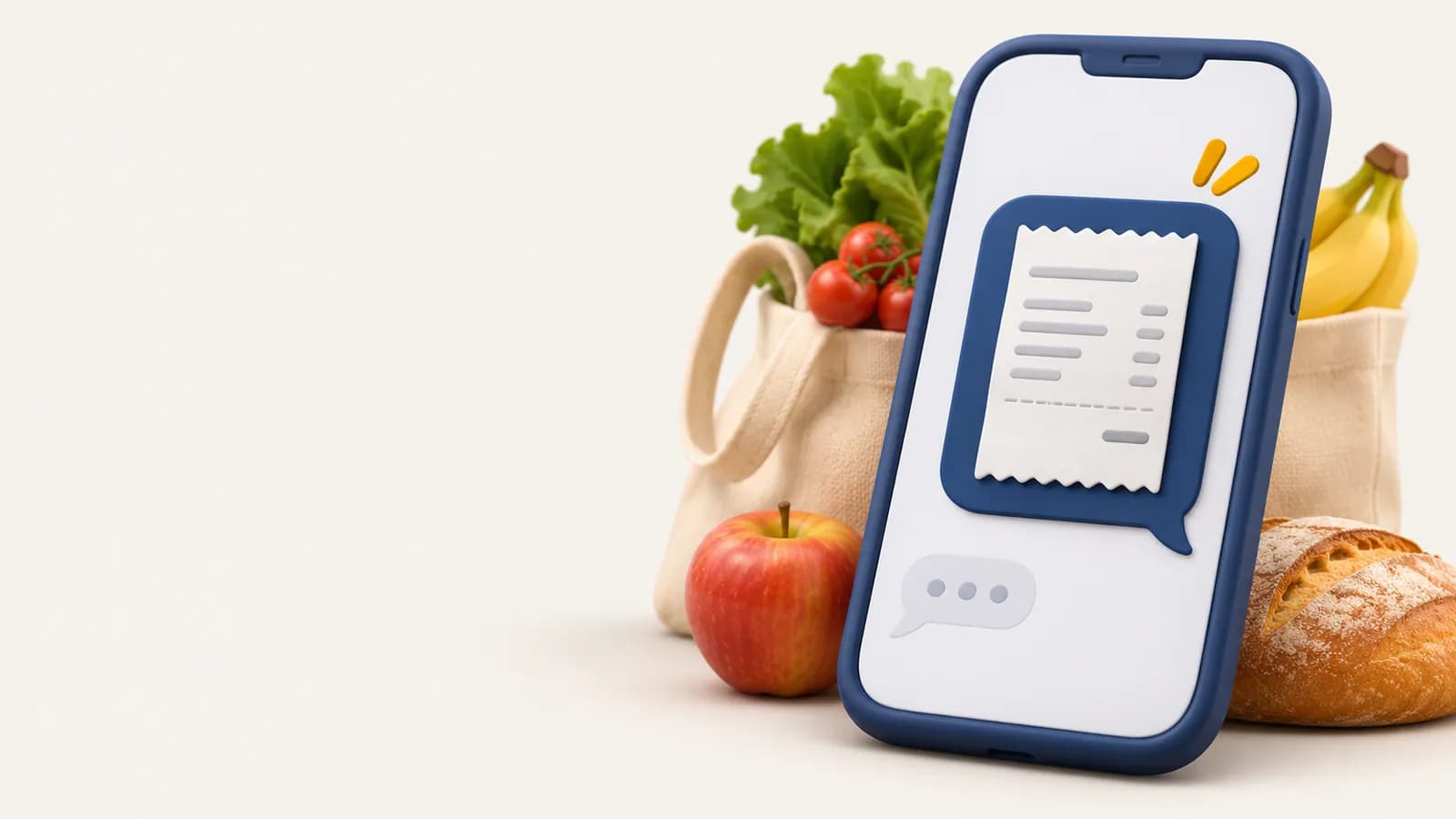
GST bills, e-invoices and e-way bills from the counter
Every product carries its HSN or SAC code and GST rate from the ERP item master, and the counter works out CGST and SGST, or IGST for an out-of-state business buyer, line by line. The printed receipt shows the shop GSTIN, the tax breakup by rate and the rounded total. Composition dealers issue a bill of supply at zero tax instead.
For business customers, add the buyer GSTIN to the bill. Where your plan includes it, the B2B invoice can be registered for an e-invoice IRN through a connected GST provider, and an e-way bill can be raised for goods leaving the shop, without retyping the bill in another portal.
- HSN and SAC on every line
- CGST, SGST and IGST split by rate
- Bill of supply for composition dealers
- Buyer GSTIN on B2B bills
- E-invoice and e-way bill from counter documents
 Credit note
 Store credit
- Return
Returns and exchanges
How to manage returns and exchanges in a retail POS
A return starts from the original bill, not from a blank screen. The cashier finds the sale by bill number or customer, selects the lines and quantities coming back, and picks a reason. The counter refuses to return more than was sold, issues a numbered credit note, and puts resaleable goods back into stock.
The refund goes back the way the customer paid, or as store credit for the next visit. For an exchange, the credit note is used as payment on the new bill, so the customer pays or gets back only the difference. A manager can see every return, refund and reason in the shift report.
- Return against the original bill
- Reason captured for every return
- Credit note with its own numbering
- Refund to the original method or store credit
- Exchange settles only the difference
Payments
Take payment the way customers want to pay

Cash
Keypad for tendered amount with change shown, and every cash in, cash out and drawer open recorded against the shift.
UPI on your own machine
Connect your own POS machine to take UPI payments, and every payment is recorded against the bill. A UPI payment taken on a soundbox or a machine that is not connected is recorded with its method, amount and reference.
Cards
Connect your own POS machine to take card payments, and each one is recorded against the bill, so the shift report and accounts match.

Split payment
Pay one bill with cash and your own POS machine, or add store credit, a gift card or loyalty points alongside.
Getting started
Go live in eight steps
A setup wizard walks the owner through the outlet once. Shop type, outlet, products, payments, numbering, registers and receipt are covered in order, and a review step comes last.

1. Shop type
Pick the kind of business. The counter shows the tools that trade needs.

2. Outlet
Name the outlet, its address and the warehouse its stock comes from.
3. Catalogue check
Confirm your ERP products are ready to sell, with prices, HSN codes and GST rates.
4. Payments and accounts
Choose the payment methods you accept and the accounts they post to.

5. Bill numbering
Set the bill number series for the outlet, so every bill is in sequence.
6. Registers and cashiers
Add a register for each counter and decide who can sell on it.

7. Receipt
Set what the printed receipt shows, such as the customer GSTIN on business bills.

8. Review and go live
Check the summary, then open the first shift and start billing.
A day at the counter
From opening float to day close
The same simple routine on every register, so the cash in the drawer always matches the system.
- 1
Open the shift
The cashier signs in, counts the opening float and opens the register. Bill numbering continues from the last bill.
- 2
Bill customers
Scan, search or tap items, attach the customer, hold a bill to serve the next person, and take payment.
- 3
Handle returns
Returns and exchanges run against the original bill, with credit notes and refunds recorded on the shift.
- 4
Move cash
Cash drops, petty expenses and float top-ups are entered as movements, never as missing money.
- 5
Close and count
Count the drawer by denomination. The X report shows the running shift, the Z report closes it with any difference.
- 6
Review and post
Sales, tax and stock are already in the ERP. Owners read sales by item, staff and register the next morning.
Reports
Reports that close the day for you

X and Z reports
Running and closing shift reports with sales by tender, returns, cash movements and the counted difference.

Owner reports
Sales by item, category, staff, register and shift, plus discount and return leakage and profit on recorded cost.

Customer balances
See what each credit customer owes, collect payments against open bills and keep the khata current.
POS and ERP
Why a POS connected to ERP saves the month end
Because the counter is part of Fininvo ERP, a sale is not a number to be imported later. Stock reduces at the outlet warehouse when the bill completes, the sale and tax post to the ledger, and the customer balance updates for credit sales. Purchases, supplier bills and stock transfers that the back office records in the ERP show up at the counter the same day.
That makes GST returns, stock counts and profit reports a matter of reading the books rather than rebuilding them. If you already use Fininvo ERP for invoicing and inventory, adding a POS counter keeps everything in one place. If you are new to Fininvo, the same trial covers both.
FAQ
Frequently asked questions
What is Fininvo POS?
Fininvo POS is the billing counter of Fininvo ERP. A cashier scans or picks items, takes payment and prints or shares a GST receipt. Each bill updates stock and posts to the ERP books, so the counter and the back office work from the same records.
Which devices does Fininvo POS run on?
It runs in a web browser on a counter PC or tablet, on a phone through the Fininvo ERP mobile app, and as a Windows desktop app that can keep billing when the internet drops. All three sign in to the same outlet and register setup.
Can I keep billing when the internet is down?
The Windows desktop app is built for offline selling. Before going offline it downloads the catalogue and a signed selling authority with clear limits. Sales made offline are stored on the computer and uploaded when the connection returns, with anything that needs a decision sent to a manager review list.
How do returns and exchanges work in a retail POS?
Look up the original bill, pick the lines and quantities coming back, and choose a reason. The counter issues a credit note and refunds by the original method or as store credit, and returned goods go back into stock. For an exchange, the credit note pays toward the new bill, so the customer only pays or receives the difference.
Does Fininvo POS print GST bills?
Yes. Receipts carry the shop GSTIN, HSN or SAC codes and the tax breakup for each rate. Composition dealers can issue a bill of supply instead. B2B sales can carry the buyer GSTIN, and e-invoice and e-way bill actions are available from the counter documents where your plan includes them.
Which payment methods can the counter take?
Cash with change calculation, card and UPI on your own POS machine connected to the counter, store credit, gift cards, loyalty points and on-account credit for known customers. A payment taken on a machine that is not connected is recorded with its reference. One bill can be split across more than one method, and every payment is recorded against the bill.
How much does Fininvo POS cost?
POS is sold as part of Fininvo ERP with counter add-ons. Current plans and prices are on the pricing page, where you can also compare Fininvo with other billing software.
Is there a free trial?
Yes. Start a 14-day free Fininvo ERP trial with full access, then add POS counters. Paid plans start only after the trial ends.
14 days free, full access
Set up your first POS counter
Create your company, add products with their GST rates, open an outlet and start billing. Bring your team in when you are ready.
Start with a 14-day free Fininvo ERP trial, then add POS counters. Paid plans start after the trial.