POS feature
POS hardware that works with the counter you already run
Receipt printers, barcode scanners, cash drawers and label printers connect to Fininvo POS on Windows, Android, iOS and the browser. Add each device to its register, run the guided test, and the counter uses it on every bill. No proprietary boxes to buy from us.
Start with a 14-day free Fininvo ERP trial, then add POS counters. Paid plans start after the trial.
 PrintersESC/POS thermal
 ScannersKeyboard style or camera
 Cash drawerOpens from the printer
Start here
Hardware is about the connection, not the brand
Shop owners usually ask one question first: which printer should I buy? The honest answer is that the brand matters less than how the printer talks to the counter. Most thermal receipt printers sold for billing understand the same command language, called ESC/POS. What decides whether a printer works is the connection: a printer installed in Windows, a printer on your shop network, a Bluetooth printer paired with an Android phone, or a USB printer plugged into a computer running Chrome or Edge.
Fininvo POS runs on three kinds of counter: the Windows desktop app, the Fininvo ERP mobile app on Android and iOS, and the browser counter. Each one reaches hardware in its own way, and this page sets out exactly which connection works where. We do not publish a list of certified models. Instead, every device you add goes through a guided test on your own counter, and a staff member confirms what came out of the printer before the register uses it.
Connections by counter
What each counter can connect to
Pick the counter first, then the hardware that suits it. A shop can mix counters, for example a Windows PC at the main till and an Android phone on the floor.
| Device | Windows desktop app | Mobile app | Browser counter |
|---|---|---|---|
| Receipt printer | Any installed Windows printer, or a network printer on the shop network | Network printer; Bluetooth thermal printer on Android | USB thermal printer from Chrome or Edge on a computer; print dialog in any browser |
| A4 invoice | Windows print dialog | A4 PDF through the phone print dialog | Browser print dialog |
| Barcode scanner | USB or Bluetooth scanner that types like a keyboard | Keyboard-style scanner, or the phone camera | USB or Bluetooth scanner that types like a keyboard |
| Cash drawer | Through the receipt printer, optional open after cash sales | Through a network or Bluetooth printer | Through a USB printer in Chrome or Edge |
| Kitchen tickets | Prints kitchen tickets for the outlet over the network | Set up per outlet, see the kitchen display and KOT guide | USB kitchen printer from Chrome or Edge |
| Shelf labels | Windows print dialog, up to 500 labels a job | Not on the phone | Browser print dialog |
Bluetooth printing works on Android only; on iPhone and iPad use a network printer. A web page cannot reach network printers, so the browser counter prints over USB or through the print dialog.
 Desktop setup
 Bluetooth
 Digital receipt
Receipt printers
Thermal receipts on the roll you already stock
The receipt layout adapts to the paper. Fininvo supports the common thermal roll widths: 58 mm and 80 mm for most shops, plus 44, 76 and 104 to 112 mm rolls, with an override for the number of characters per line if your printer packs text differently. The receipt carries your business name, GSTIN, bill number, items, tax breakup and payment, and it reprints the same way later.
On the Windows desktop app, choose an installed Windows printer or enter the network address of a printer on your shop network. On Android, pair the Bluetooth printer in the phone settings first, then pick it in the app; the same printer handles receipts, reprints, shift reports and credit notes. Every counter can also produce an A4 invoice through the normal print dialog for customers who want a full-page copy, including bills in regional scripts.
- 58 mm and 80 mm rolls, plus other common widths
- Windows printers and network printers on desktop
- Bluetooth thermal printers on Android
- USB thermal printing from Chrome or Edge
- A4 invoice from every counter
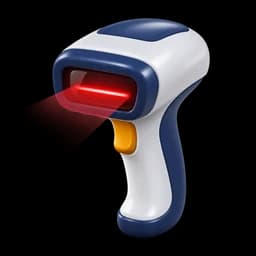
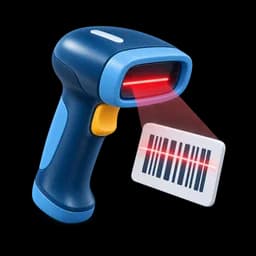 Fast scan
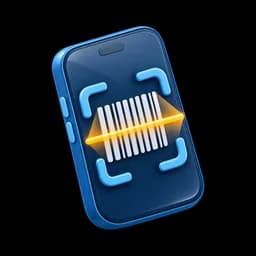 Camera scan
 Scan to bill
Barcode scanners
Scan with a scanner, or with the phone in your hand
Most USB and Bluetooth barcode scanners behave like a keyboard: they type the barcode and press Enter. Fininvo reads this kind of scanner on all three counters without any driver, so a scan anywhere on the billing screen adds the item to the bill. The hardware page test listens for a scan and tells you whether your scanner ends each code with Enter or Tab, which is the most common reason a scanner seems not to work.
The mobile app adds continuous camera scanning. Point the phone at a shelf of products and each barcode is read in turn, which suits a small shop, a stock count on the floor or a line-busting counter on a busy day. The browser counter does not scan with a camera; use a scanner there.
- Keyboard-style USB and Bluetooth scanners
- Works on desktop, mobile and browser
- Test detects the Enter or Tab ending
- Continuous camera scanning on mobile
Drawer, labels, kitchen and scale
The rest of the counter
A cash drawer, a label printer and a kitchen printer finish most counters. Here is how each one connects, and where the limits are.
Cash drawer
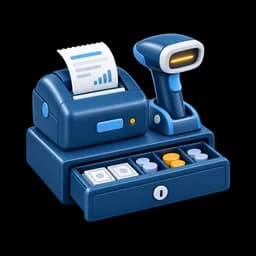
Plugs into the receipt printer and opens on a pulse from the counter. Optional open after cash sales on desktop; a manual open needs a reason and is recorded.
Shift and cash management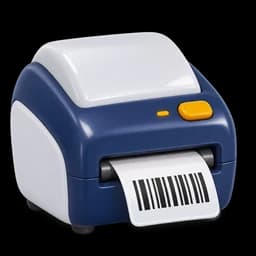
Label printing
Shelf and price labels on thermal rolls from 38 x 15 mm to 100 x 150 mm, or A4 sheets of 24 labels. EAN-13 or Code 128 barcodes.
Barcode and label printing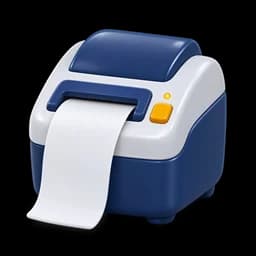
Kitchen printers
The desktop app can print kitchen tickets for the outlet, routed by station, with a backup printer and dish names in a regional language.
Kitchen display and KOT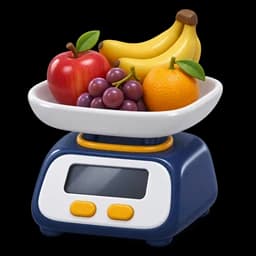
Weighing scale
Label-printing scales print a barcode with the weight or price, and the counter reads it at the till. There is no live cable link to a scale.
Worked example
Kitting out a two-counter grocery store
A grocery store with a main till, a second till for busy hours and a weighing counter for loose produce. This is one way to set it up with the connections Fininvo supports.
| Counter | Runs on | Printer | Scanner | Drawer | Other |
|---|---|---|---|---|---|
| Main till | Windows desktop app | 80 mm thermal printer installed in Windows | USB scanner that types like a keyboard | Plugged into the printer, opens after cash sales | A4 invoices for business buyers through the print dialog |
| Busy-hour till | Android tablet with the mobile app | 58 mm Bluetooth thermal printer paired in Android | Bluetooth keyboard-style scanner, or the tablet camera | Through the Bluetooth printer | Works offline for cash sales where the owner allows it |
| Produce counter | Label-printing weighing scale | Scale prints its own weight barcode | Read at either till | None | No cable link between scale and till |
| Back office | Browser in Chrome on the office PC | Label printer through the print dialog | USB scanner to look up items | None | Shelf labels for new prices |
Each device is added to its register on the hardware page and passes the guided test before the counter uses it. Paper widths and label sizes are those the product supports; check your own printer's roll size before ordering paper.
 Registers
 Drawer test
 Receipt layout
Setup and testing
Add a device, test it, then sell
Every device belongs to a register at an outlet. On the hardware page, choose the role (receipt printer, kitchen printer, label printer, scanner or cash drawer), pick how it connects, set the paper width and, for printers, a backup printer if you have one. The guided test runs in stages: connect, send a test print, check the alignment ruler and confirm. A staff member looks at what actually came out and confirms it, so a printer that prints garbled text never reaches a live bill.
On the Windows desktop app there is a test page, a width ruler and a receipt preview, so you can see the layout before printing a real bill. Test results on the desktop are kept on that PC. Any bill can be reprinted later, so a paper jam never costs you the receipt.
- Device added per outlet and register
- Role, connection, paper width and backup printer
- Staged test confirmed by staff
- Test page, ruler and preview on desktop
- Reprint any bill later
Be precise
What Fininvo POS does not connect to
Knowing the limits before you buy saves a return trip to the shop. Bluetooth printing is Android only; iPhones and iPads print to a network printer. Phones and tablets cannot print over a USB cable. The browser counter cannot reach network printers, and USB printing in the browser needs Chrome or Edge on a computer; Firefox and Safari can only use the print dialog.
Label printers that need their own label languages instead of ESC/POS or the Windows print dialog are not driven directly. There is no live link to a weighing scale, and no pole display driver. Card machines are your own, and no terminal brand is built in: connect your own POS machine to take card and UPI payments, and every payment is recorded against the bill.
Go live with hardware
From box to first printed bill
- 1
Choose the counter
Decide which tills run the Windows app, the mobile app or the browser counter.
- 2
Connect
Install the printer in Windows, put it on the shop network, or pair it over Bluetooth on Android.
- 3
Add to the register
On the hardware page, add the device with its role, connection and paper width.
- 4
Run the test
Print the test page and ruler, open the drawer and scan a barcode.
- 5
Confirm
A staff member confirms the printed result, and the register starts using the device.
- 6
Bill
Every bill now prints, opens the drawer for cash and reads the scanner.
FAQ
Frequently asked questions
Which receipt printers work with Fininvo POS?
Thermal receipt printers that understand ESC/POS commands. On the Windows desktop app you can print to any printer installed in Windows, or to a network printer on your shop network. On Android phones and tablets you can print to a paired Bluetooth thermal printer or a network printer. On iPhone and iPad, use a network printer. In the browser, Chrome or Edge on a computer can print to a USB thermal printer, and every browser can use the normal print dialog.
Do I need to buy hardware from Fininvo?
No. Fininvo does not sell hardware. You use printers, scanners and drawers you already own or buy locally, then add each one on the hardware page and run its test before you go live. We do not publish a list of certified models, so the test on your own counter is the check that counts.
Does a normal USB barcode scanner work?
Yes, if it types the barcode like a keyboard, which is how most USB and Bluetooth scanners work out of the box. The desktop app, the browser counter and the mobile app all read this kind of scanner. The hardware page test detects the scanner and whether it ends each scan with Enter or Tab. The mobile app can also scan with the phone camera, continuously, without a separate scanner.
How does the cash drawer open?
The drawer plugs into the receipt printer and opens when the counter sends the printer an open drawer pulse. On the desktop app it can open by itself after a cash sale, and a manual open asks for a reason. Opening the drawer without a sale is recorded, so the owner can see who opened it and why.
Can Fininvo read weight directly from my weighing scale?
Not today. There is no live cable link between a scale and the counter. What works is the label route: a label-printing scale prints a barcode with the weight or price in it, and the counter reads that barcode at the till. Read the barcode and label printing guide for the details.
How do card payments work at the counter?
Connect your own POS machine to take card and UPI payments, or take cash; every payment is recorded against the bill. When the customer pays on a machine that is not connected, the cashier records the payment on the bill with its reference, and it is marked as recorded at the counter so the owner can match it with the machine settlement later.
14 days free, full access
Connect your counter hardware to Fininvo POS
Set up your outlet and registers, add your printers and scanners, run the test and print your first bill. The same account runs your accounts and stock.
Start with a 14-day free Fininvo ERP trial, then add POS counters. Paid plans start after the trial.