Buyer guide
Offline billing software: how to choose billing that works without internet
Every shop loses the connection sooner or later. Good offline billing software keeps the queue moving, never repeats a bill number and puts every sale back in your books when the line returns. Here is what to check before you buy, and where Fininvo POS fits.
Start with a 14-day free Fininvo ERP trial, then add POS counters. Paid plans start after the trial.
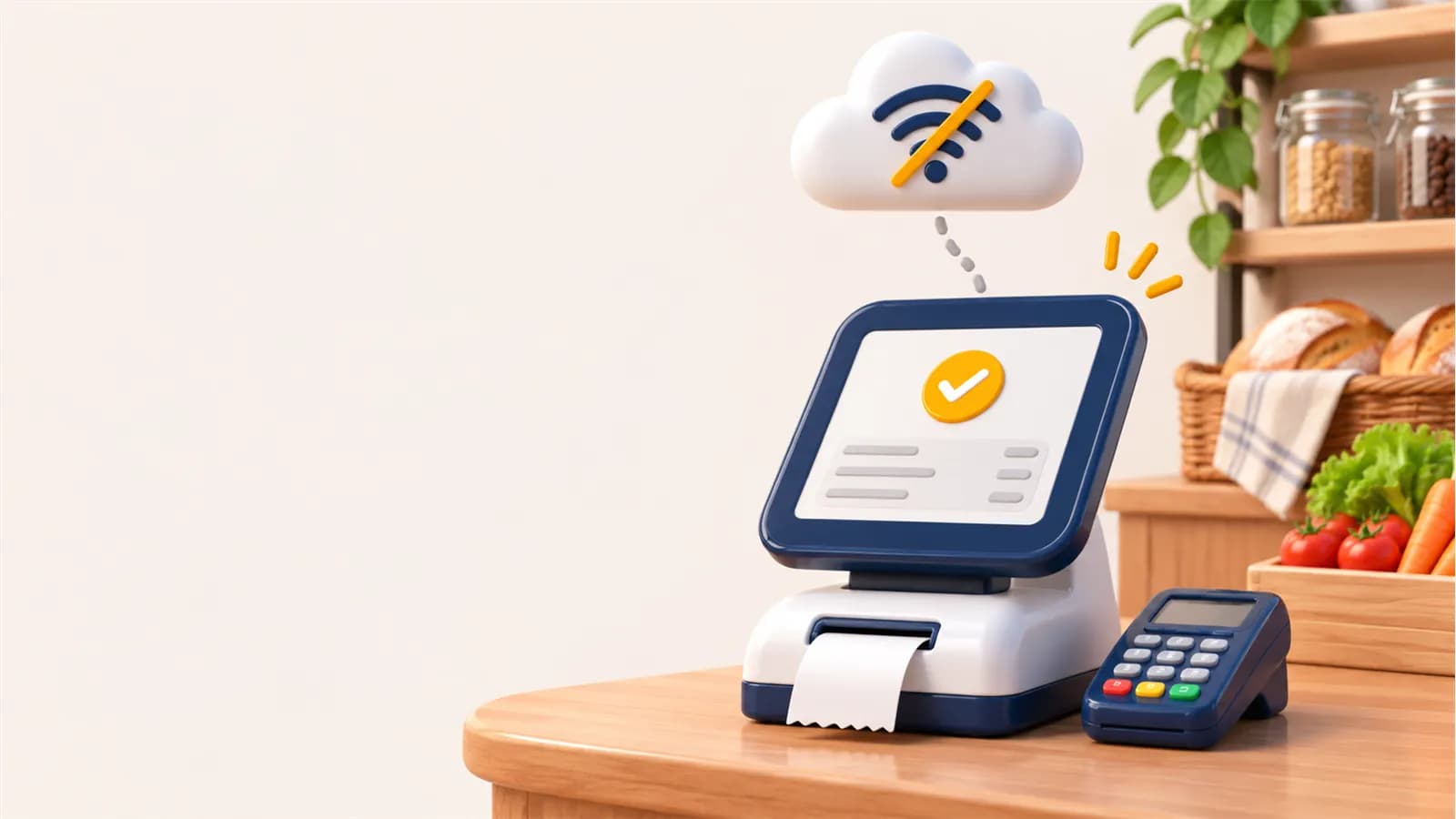
 Bills offlineWindows, Android, iPhone
 No duplicatesNumbers reserved per counter
 Syncs backInto your ERP books
Why offline matters
The question is not whether the internet drops, but what your billing does next
Broadband goes down when a cable is cut on the road, mobile data slows in the evening rush, and a power cut takes the router with it. For a shop, each of those minutes is a queue of customers holding money. Billing software that only works online leaves two bad choices: send customers away, or write bills by hand and type them in later, which is where wrong totals, missing stock and duplicate numbers come from.
Offline billing software solves the first problem, but a careless one creates the second. If two counters keep their own numbering, they will both issue bill 101. If the software sells from a price list that is a week old, the bill and the books disagree. If the bills live only on one hard disk, a failed disk loses the day. The real test of offline billing is not the hour the internet is down; it is the hour after it comes back.
This guide sets out the checks that separate a safe offline counter from a risky one, compares the three kinds of billing software you will meet, and shows honestly which Fininvo devices bill offline and which do not.
Know what you are buying
Three kinds of billing software, and how each handles an outage
Most products sold as offline billing software fall into one of three designs. Each has a real trade-off.

Installed, single PC
Everything lives on one computer. It never needs the internet, but the owner cannot see sales from home, two shops cannot share stock, and the books are only as safe as the last backup someone remembered to take.

Cloud only
Billing happens on a server through the browser. Stock, accounts and reports are always current and nothing is lost with a PC, but when the connection goes the counter stops.

Cloud with an offline counter
The books live in the cloud, and the counter carries enough on the device to keep billing through an outage, then uploads. This is the Fininvo design. It is harder to build, so check the rules it follows.
Capability by device
Which Fininvo devices bill without internet
The Windows desktop app and the Fininvo ERP app on Android and iPhone bill offline. The browser counter does not. Look at the offline row, then at what each device needs a connection for.
| Capability | Web counterAny modern browser | AndroidFininvo ERP app | iPhone and iPadFininvo ERP app | Windows desktopFininvo POS app |
|---|---|---|---|---|
| GST billing counter | YesFull counter in the browser, with keyboard shortcuts and held bills. | YesPhone counter; split view on tablets 720 dp and wider. | YesiPhone counter. On iPad the app runs in iPhone mode, with no iPad layout. | YesInstalled counter for Windows 11 PCs. |
| Returns and exchanges | YesAgainst the original bill, with credit note, refund or exchange. | YesReturn sheet with refund or exchange. Needs internet. | YesReturn sheet with refund or exchange. Needs internet. | YesReturn or exchange against the original bill. Needs internet. |
| Khata (credit sales and collection) | YesCredit sale within the limit, cash collection oldest bill first, balances with ageing. | YesOn account payment and collect payment sheet. Needs internet. | YesOn account payment and collect payment sheet. Needs internet. | YesCredit sale and cash collection in the customer panel. Needs internet. |
| Restaurant orders and KOT | YesTables, menu and ticket side by side; tickets go to the kitchen display. | YesTables, menu and ticket tabs with captain mode. Needs internet. | YesTables, menu and ticket tabs with captain mode. Needs internet. | YesPrints KOTs for the outlet; one device keeps taking orders offline. |
| Shelf and barcode label printing | YesLabel sheets and rolls through the browser print dialog. | NoThe labels tile opens the web page instead. | NoThe labels tile opens the web page instead. | YesLabel panel through the Windows print dialog. |
| Card and UPI on your own POS machine | YesSend the amount to your connected POS machine, or record a payment from another machine with its reference. | YesSend the amount to your connected POS machine, or record a payment with its reference. Needs internet. | YesSend the amount to your connected POS machine, or record a payment with its reference. Needs internet. | YesSend the amount to your connected POS machine or record a card payment, online, including cash plus your machine on one bill. |
| Share the receipt | YesEmail, or WhatsApp and SMS where the shop has connected them. | YesShare sheet; an offline bill can be shared after it uploads. | YesShare sheet; an offline bill can be shared after it uploads. | YesWhatsApp or SMS where connected, for an accepted bill. Needs internet. |
| Reports | YesX and Z shift reports, owner reports by item, staff, register and hour. | PartlyToday summary and X and Z reports; owner reports open on the web. | PartlyToday summary and X and Z reports; owner reports open on the web. | PartlyShift report and printed Z at close; owner reports are on the web. |
| Billing without internet | NoThe browser counter bills online and says when the connection drops. | YesCash sales within the owner limits, uploaded when the connection returns. | YesCash sales within the owner limits, uploaded when the connection returns. | YesCash sales, local receipts and kitchen tickets within the owner limits. |
| Customer-facing display | YesA second screen paired to the register shows the cart and the total. | PartlyFeeds a display already paired to the register from the web counter. | PartlyFeeds a display already paired to the register from the web counter. | YesOpens a customer window on a second monitor. |
| Bluetooth receipt printer | NoUSB thermal printing in Chrome or Edge, or the browser print dialog. | YesPaired Classic Bluetooth thermal printers, 58 and 80 mm. | NoiPhone and iPad cannot use Classic Bluetooth printers; use a network printer. | NoPrints to Windows printers and network printers instead. |
| Barcode scan with the camera | NoUse a USB or Bluetooth scanner that types like a keyboard. | YesContinuous camera scanning, plus keyboard-type scanners. | YesContinuous camera scanning, plus keyboard-type scanners. | NoUse a USB barcode scanner. |
Yes means it works on that device today once the feature is switched on for your outlet. Partly means it works with the limit shown. Every device signs in to the same outlets, registers, products and prices.

- Number block
- Backup
 Upload
How Fininvo keeps offline bills safe
Five rules a counter follows before it bills offline
A Fininvo counter does not simply carry on when the line drops; it prepares while the line is up. With the shift open and a connection available, it downloads the signed catalogue with prices and tax rates, the register settings, a block of bill numbers from your normal series and an offline permission with an end time set by the owner.
From then on the rules are fixed. Bills are numbered only from the reserved block, so two counters never clash. Sales stop if the downloaded prices grow older than the owner allows. Each bill is signed by the device and saved together with its payment and stock movement, so a power cut cannot leave half a bill. And when the offline period ends, the counter must connect once before it can bill offline again.
- Signed catalogue and prices downloaded first
- Bill numbers from a reserved block
- Owner-set offline period and price age
- Each bill signed and saved in one step
- Connect again when the period ends

 Queue
 Retry
 Review
When the line comes back
Sync and conflicts: what happens to each offline bill
Offline bills upload on their own in the order they were made, retrying until each one is through. A bill that arrives twice is recorded once, so a shaky connection cannot double a sale. Each bill is checked separately, so one awkward bill never holds up the rest of the day.
Conflicts are handled by review, not by silent changes. If a price changed in the office while the counter was offline, or stock went below zero, or a bill arrives after the shift was closed, the sale is accepted as billed and flagged for a manager. The customer paid what the receipt says, and the books record it; the manager decides whether anything needs correcting.
- Upload in order, retried automatically
- Duplicates recorded once
- Each bill checked on its own
- Price and stock differences flagged for review
- Nothing deleted to make room
Be precise
What needs internet on every Fininvo counter
Offline billing covers cash sales from the downloaded catalogue. These need a connection on every device, because the server has to confirm a payment or a balance.
- Billing in the browserNot on this deviceThe web counter bills online only. Use the Windows app or the phone app for offline cover.
- UPI confirmationNot on this deviceA UPI payment is confirmed by the bank network, so offline counters take cash and say why.
- Khata, gift cards and loyalty pointsNot on this deviceEach checks a customer balance on the server before the bill can close.
- Offers, coupons and manager approvalsNot on this deviceWorked out or approved online, so the offline price stays the downloaded one.
- E-invoice IRN for B2B billsNot on this deviceThe IRN comes from the government system, so it always needs a connection.
- ReturnsNot on this deviceReturns and exchanges are made online against the original bill.
Which device to pick
Matching the device to the shop
A fixed counter with steady footfall, a receipt printer and a cash drawer is best served by the Windows desktop app. It starts each day for offline billing, prints receipts and kitchen tickets to its own printers without the internet, and keeps an encrypted backup every 15 minutes on a separate storage location. If the last backup is too old or the disk is nearly full, it pauses offline billing rather than risk losing bills.
A stall, a market day counter, a second till for the rush or a shop that does not want a PC can use the Fininvo ERP app on an Android phone or an iPhone. Offline sales are saved in an encrypted database on the phone with a status chip that shows how many bills are waiting. On the phone, the offline receipt shows on screen; printing and sending the digital receipt follow once the bill has uploaded.
If your connection is reliable and you mainly want a counter on any PC or tablet without installing anything, the web counter is the simplest start. Just know that it stops billing when the browser loses the connection, and plan a phone with the app as the backup counter.
Setting it up
From trial to your first offline bill
- 1
Start the trial
Create your company on the web and add products with HSN codes and GST rates.
- 2
Set up the outlet
Run the POS setup for the outlet, its registers, bill numbering and receipt.
- 3
Switch on offline
In the outlet counter settings, turn on offline billing and set the period and limits.
- 4
Install a counter
Install the Windows app or the Fininvo ERP app and pair it to a register.
- 5
Prepare each morning
Open the shift while online so the counter downloads prices and numbers.
- 6
Bill through outages
Cash sales carry on offline and upload when the connection returns.
FAQ
Frequently asked questions
Is there billing software that works without internet?
Yes. Fininvo POS bills cash sales without internet on the Windows desktop app and in the Fininvo ERP app on Android and iPhone. The browser counter needs a connection. Offline bills are stored on the device and uploaded to your Fininvo books when the connection returns.
Is offline billing software safe if the computer breaks?
It depends on where the bills live. In Fininvo, offline bills sit on the device only until they upload, usually minutes or hours. The Windows app keeps an encrypted backup on a separate storage location every 15 minutes and stops offline billing if the last backup is too old, so a dead PC does not take the day with it.
Do I need a desktop or can I use a phone for offline billing?
Either. A Windows PC with a receipt printer suits a busy fixed counter. An Android phone or iPhone with the Fininvo ERP app suits a stall, a second counter or a shop that does not want a PC. Both follow the same owner limits and upload to the same books.
Can offline billing software take UPI payments?
A UPI payment can only be confirmed by the bank network, so it needs internet. Offline, the Fininvo counter takes cash and tells the cashier up front that UPI, khata credit, gift cards and loyalty points wait for the connection, instead of failing at the end of the bill.
Are offline bills valid GST bills?
Each offline bill carries the next number from a block reserved for that counter in your normal series, the product HSN codes and the tax worked out from the downloaded rates, so the printed receipt is a proper tax bill. B2B e-invoices still need a connection because the IRN comes from the government system.
How is this page different from the offline billing feature page?
This page helps you choose offline billing software and compares the kinds on the market. The offline billing feature page goes deeper into the Fininvo settings: the owner limits with their ranges, bill states, number blocks and the review of flagged bills.
14 days free, full access
Try billing that keeps going when the internet does not
Set up an outlet, switch on offline billing for it and pair a Windows PC or a phone. Your offline bills land in the same Fininvo books as every online sale.
Start with a 14-day free Fininvo ERP trial, then add POS counters. Paid plans start after the trial.