Cloud POS in the browser
Web-based POS: a full billing counter in your browser
Sign in on any PC, laptop or touchscreen and open the Fininvo POS counter. No install, no local database to back up, and every bill lands in your Fininvo ERP stock and books the moment it closes.
Start with a 14-day free Fininvo ERP trial, then add POS counters. Paid plans start after the trial.
 Any screenPC, laptop, touchscreen
 Customer displayPair with a code
 Live reportsSame data everywhere
Why cloud POS
The counter, the office and the owner on the same numbers
With billing software installed on one PC, the numbers live on that PC. The owner calls the shop to ask what sold, the accountant waits for an export, and a second branch keeps its own stock. A web-based POS turns that around: the counter is a page on a server, so every bill is recorded centrally the moment it closes and everyone with access sees it.
Fininvo puts that counter inside Fininvo ERP. The products, prices, HSN codes and GST rates the office keeps are the ones the cashier sells, stock reduces at the outlet warehouse on every bill, and the sale and tax post to the books. Purchases and stock transfers entered in the office show up at the counter the same day.
The trade-off is the connection. A browser counter cannot keep billing when the internet goes, and Fininvo does not pretend otherwise: the counter says so plainly and points the cashier to the app. Shops that cannot afford a stopped till keep a Windows PC or a phone with the app on the same outlet for cover.
Capability by device
What the web counter does, next to the apps
The web counter column is highlighted. It covers the most ground, except billing without internet, Bluetooth printing and camera scanning, which the apps add.
| Capability | Web counterAny modern browser, this page | AndroidFininvo ERP app | iPhone and iPadFininvo ERP app | Windows desktopFininvo POS app |
|---|---|---|---|---|
| GST billing counter | YesFull counter in the browser, with keyboard shortcuts and held bills. | YesPhone counter; split view on tablets 720 dp and wider. | YesiPhone counter. On iPad the app runs in iPhone mode, with no iPad layout. | YesInstalled counter for Windows 11 PCs. |
| Returns and exchanges | YesAgainst the original bill, with credit note, refund or exchange. | YesReturn sheet with refund or exchange. Needs internet. | YesReturn sheet with refund or exchange. Needs internet. | YesReturn or exchange against the original bill. Needs internet. |
| Khata (credit sales and collection) | YesCredit sale within the limit, cash collection oldest bill first, balances with ageing. | YesOn account payment and collect payment sheet. Needs internet. | YesOn account payment and collect payment sheet. Needs internet. | YesCredit sale and cash collection in the customer panel. Needs internet. |
| Restaurant orders and KOT | YesTables, menu and ticket side by side; tickets go to the kitchen display. | YesTables, menu and ticket tabs with captain mode. Needs internet. | YesTables, menu and ticket tabs with captain mode. Needs internet. | YesPrints KOTs for the outlet; one device keeps taking orders offline. |
| Shelf and barcode label printing | YesLabel sheets and rolls through the browser print dialog. | NoThe labels tile opens the web page instead. | NoThe labels tile opens the web page instead. | YesLabel panel through the Windows print dialog. |
| Card and UPI on your own POS machine | YesSend the amount to your connected POS machine, or record a payment from another machine with its reference. | YesSend the amount to your connected POS machine, or record a payment with its reference. Needs internet. | YesSend the amount to your connected POS machine, or record a payment with its reference. Needs internet. | YesSend the amount to your connected POS machine or record a card payment, online, including cash plus your machine on one bill. |
| Share the receipt | YesEmail, or WhatsApp and SMS where the shop has connected them. | YesShare sheet; an offline bill can be shared after it uploads. | YesShare sheet; an offline bill can be shared after it uploads. | YesWhatsApp or SMS where connected, for an accepted bill. Needs internet. |
| Reports | YesX and Z shift reports, owner reports by item, staff, register and hour. | PartlyToday summary and X and Z reports; owner reports open on the web. | PartlyToday summary and X and Z reports; owner reports open on the web. | PartlyShift report and printed Z at close; owner reports are on the web. |
| Billing without internet | NoThe browser counter bills online and says when the connection drops. | YesCash sales within the owner limits, uploaded when the connection returns. | YesCash sales within the owner limits, uploaded when the connection returns. | YesCash sales, local receipts and kitchen tickets within the owner limits. |
| Customer-facing display | YesA second screen paired to the register shows the cart and the total. | PartlyFeeds a display already paired to the register from the web counter. | PartlyFeeds a display already paired to the register from the web counter. | YesOpens a customer window on a second monitor. |
| Bluetooth receipt printer | NoUSB thermal printing in Chrome or Edge, or the browser print dialog. | YesPaired Classic Bluetooth thermal printers, 58 and 80 mm. | NoiPhone and iPad cannot use Classic Bluetooth printers; use a network printer. | NoPrints to Windows printers and network printers instead. |
| Barcode scan with the camera | NoUse a USB or Bluetooth scanner that types like a keyboard. | YesContinuous camera scanning, plus keyboard-type scanners. | YesContinuous camera scanning, plus keyboard-type scanners. | NoUse a USB barcode scanner. |
Yes means it works on that device today once the feature is switched on for your outlet. Partly means it works with the limit shown. Every device signs in to the same outlets, registers, products and prices.
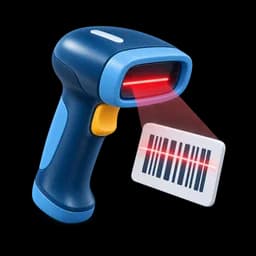 Scanner
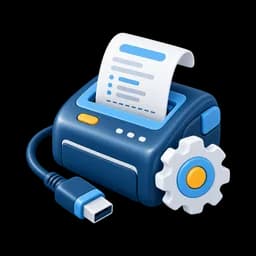 USB printer
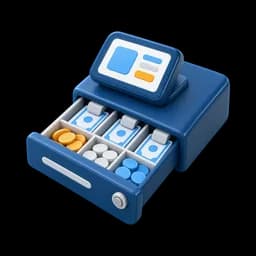 Drawer
Hardware in a browser
Scanners, receipt printers and cash drawers without drivers
Barcode scanners in keyboard mode, connected by USB or Bluetooth, work in any browser: scan and the item lands on the bill. In Chrome and Edge, the counter can connect directly to a USB thermal receipt printer, print the receipt the moment the bill closes without a preview, and open the cash drawer through the printer. Record which printer each register uses once and the counter remembers it.
In other browsers, such as Safari on an iPad, the receipt prints through the normal print dialog to any printer the device knows, and shift reports print the same way. The receipt can also be emailed, or sent by WhatsApp or SMS where your shop has connected those channels.
- Keyboard-type USB or Bluetooth scanners
- Direct USB thermal printing in Chrome and Edge
- Cash drawer through the printer
- Print dialog in every browser
- Email, WhatsApp or SMS receipts where connected
At the counter
Built for speed at a busy till
Keyboard first
F2 searches by name, F3 returns to the barcode box, F6 holds a bill and F7 brings it back.
Customer display
Pair a second screen with a one-time 8 digit code, or open the display in another window.
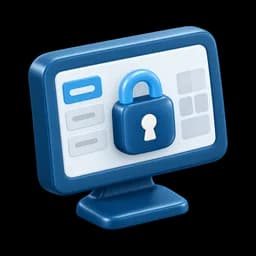
Lock screen
Lock the counter between customers; staff tiles and a PIN bring the next cashier in.
Khata
Credit sales within limits and cash collections against the oldest bills first.

 Shift report
 Day end
 Outlets
Owner view
Reports that are current while the shop is still open
Because every bill is recorded centrally, the reports are live. The X report shows the running shift by payment method, returns and cash movements; the Z report closes it with the counted difference. Owner reports break sales down by item, category, staff, register, shift and hour, and show discount and return leakage and profit on recorded cost.
All of it reads the same data the counter wrote, so there is nothing to import at the end of the day. GST on every bill is already in the books when you sit down with your accountant, and a second outlet is another register on the same login, not another program.
- X and Z shift reports
- Sales by item, staff, register and hour
- Discount and return leakage
- Several outlets, one login
- GST already in the books
Be precise
What the web counter does not do
From the matrix, plus the browser limits worth knowing before you choose it as your only counter.
- Billing without internetNot on this deviceThe browser counter bills online and says when the connection drops.
- Bluetooth receipt printerNot on this deviceUSB thermal printing in Chrome or Edge, or the browser print dialog.
- Barcode scan with the cameraNot on this deviceUse a USB or Bluetooth scanner that types like a keyboard.
- Direct USB printing outside Chrome and EdgeNot on this deviceSafari and Firefox print through the print dialog instead.
- Two browsers on one registerNot on this deviceOne counter session uses a register at a time. Add a register for each extra till.
Getting started
From sign-up to the first bill in the browser
- 1
Start the trial
Create your company and add products with HSN codes and GST rates.
- 2
Run POS setup
Shop type, outlet, payments, bill numbering, registers and receipt, in order.
- 3
Connect hardware
Plug in the scanner, connect the USB printer in Chrome or Edge, pair a display.
- 4
Open the shift
Pick the register, count the opening float and open the shift.
- 5
Bill customers
Scan, take UPI or cash, and print or send the receipt.
- 6
Plan for outages
Add the Windows app or a phone with the app on the same outlet for offline cover.
FAQ
Frequently asked questions
What is a web-based POS?
A point of sale that runs in a web browser instead of an installed program. The cashier signs in to Fininvo on any PC, laptop or touchscreen and opens the POS counter. Products, prices, stock and sales live in the cloud, so the owner sees the same figures from anywhere.
Which browsers does the Fininvo web counter work in?
Current versions of the common browsers on Windows, macOS, Android tablets and iPad. Direct USB thermal printing uses a browser feature that only Chromium browsers such as Chrome and Edge have; in other browsers, receipts print through the normal print dialog.
Does a web-based POS work without internet?
Not the Fininvo web counter. When the connection drops it shows a banner saying it cannot complete sales and points the cashier to the app. For offline cover, keep the Windows desktop app or the Fininvo ERP phone app on the same outlet; both bill cash sales offline and upload later.
Can I connect a barcode scanner and receipt printer to a browser POS?
Yes. Any USB or Bluetooth barcode scanner that types like a keyboard works. A USB thermal receipt printer can be connected directly in Chrome or Edge, with the cash drawer opened through the printer. Any other printer the computer knows prints through the browser print dialog.
Is cloud POS software secure?
The Fininvo counter signs in with your Fininvo account, keeps the session in a secure cookie and gives each cashier a PIN for the counter lock screen. One register is used by one counter session at a time, and roles decide who can discount, void or open the drawer.
Do I need to install anything?
No. Sign in on the web and open the POS counter. Install the Windows desktop app or the phone app only if you need offline billing, Bluetooth printing on Android or camera scanning.
14 days free, full access
Open a POS counter in your browser
Start the trial, run the POS setup and bill your first customer from any PC or touchscreen. No install, and every bill is in your books straight away.
Start with a 14-day free Fininvo ERP trial, then add POS counters. Paid plans start after the trial.