POS for Windows PCs
Windows POS software that keeps billing on the shop PC
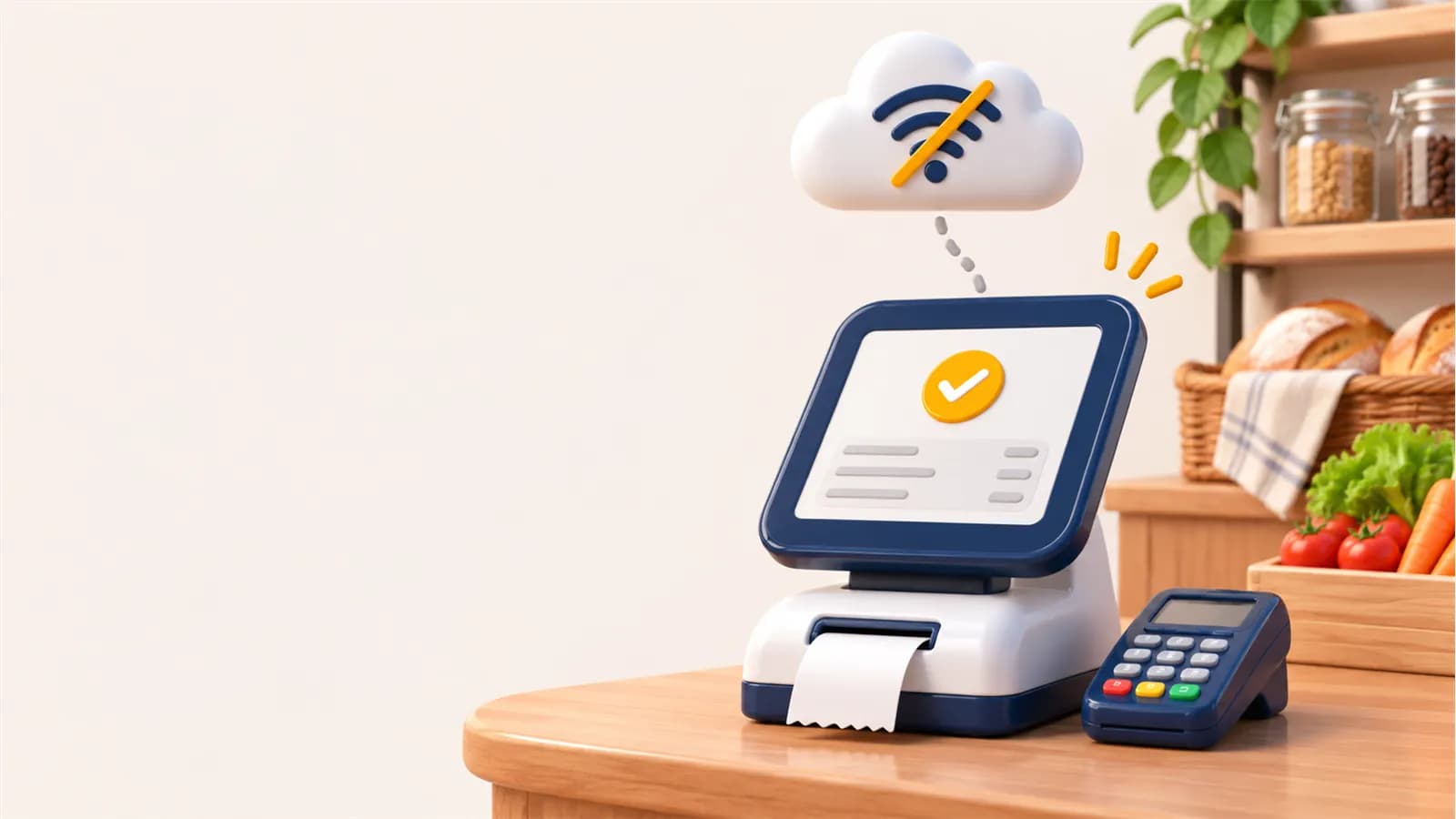
Fininvo POS for Windows is an installed counter for the computer at your till. It prints to the printers on that PC, carries on with cash sales when the internet drops, and sends every bill to your Fininvo ERP books when the line is back.
Start with a 14-day free Fininvo ERP trial, then add POS counters. Paid plans start after the trial.
 InstalledWindows 11, x64
 Local printingReceipts, KOT, labels
 BackupsEncrypted, every 15 minutes
Why an installed counter
When a browser tab is not enough for the main till
A browser counter is quick to start, but the main till of a busy shop asks for more. It needs to keep going when the broadband drops at seven in the evening, print the receipt the moment the bill closes without a print preview, send kitchen tickets to the right printer, and survive a power cut without losing half a bill. That is what an installed counter is for.
Fininvo POS for Windows is that counter. It is not a separate accounting program: it signs in to the same Fininvo outlet and register you set up on the web, uses the same products, prices and GST rates, and every bill posts to the same ERP stock and books. What it adds is the PC itself: its printers, its disk for encrypted offline storage, a second monitor for the customer, and keyboard speed.
Cashiers sign in with their own PIN, favourite items sit on number keys 1 to 9, and keyboard shortcuts such as F5 for a return keep an experienced cashier off the mouse.
Getting the installer
How to install Fininvo POS for Windows
The installer is published on the Fininvo POS download page once a signed release is qualified for general download. The page shows its size and SHA-256 checksum, and Windows should show Fininvo as the signed publisher. If the page says no installer is available yet, ask through Help and support in your Fininvo account and the team will arrange the installation with you.
- Windows 11, build 22000 or later, on an x64 computer.
- Internet for the first sign-in, register pairing and counter preparation.
- A printer driver for your receipt printer, or a network printer.
- A separate storage location for the encrypted backup.
Capability by device
What the Windows app does, next to the other Fininvo counters
The Windows desktop column is highlighted. A shop can mix devices on one outlet: the PC at the main till, phones for the rush, a browser on the office laptop.
| Capability | Web counterAny modern browser | AndroidFininvo ERP app | iPhone and iPadFininvo ERP app | Windows desktopFininvo POS app, this page |
|---|---|---|---|---|
| GST billing counter | YesFull counter in the browser, with keyboard shortcuts and held bills. | YesPhone counter; split view on tablets 720 dp and wider. | YesiPhone counter. On iPad the app runs in iPhone mode, with no iPad layout. | YesInstalled counter for Windows 11 PCs. |
| Returns and exchanges | YesAgainst the original bill, with credit note, refund or exchange. | YesReturn sheet with refund or exchange. Needs internet. | YesReturn sheet with refund or exchange. Needs internet. | YesReturn or exchange against the original bill. Needs internet. |
| Khata (credit sales and collection) | YesCredit sale within the limit, cash collection oldest bill first, balances with ageing. | YesOn account payment and collect payment sheet. Needs internet. | YesOn account payment and collect payment sheet. Needs internet. | YesCredit sale and cash collection in the customer panel. Needs internet. |
| Restaurant orders and KOT | YesTables, menu and ticket side by side; tickets go to the kitchen display. | YesTables, menu and ticket tabs with captain mode. Needs internet. | YesTables, menu and ticket tabs with captain mode. Needs internet. | YesPrints KOTs for the outlet; one device keeps taking orders offline. |
| Shelf and barcode label printing | YesLabel sheets and rolls through the browser print dialog. | NoThe labels tile opens the web page instead. | NoThe labels tile opens the web page instead. | YesLabel panel through the Windows print dialog. |
| Card and UPI on your own POS machine | YesSend the amount to your connected POS machine, or record a payment from another machine with its reference. | YesSend the amount to your connected POS machine, or record a payment with its reference. Needs internet. | YesSend the amount to your connected POS machine, or record a payment with its reference. Needs internet. | YesSend the amount to your connected POS machine or record a card payment, online, including cash plus your machine on one bill. |
| Share the receipt | YesEmail, or WhatsApp and SMS where the shop has connected them. | YesShare sheet; an offline bill can be shared after it uploads. | YesShare sheet; an offline bill can be shared after it uploads. | YesWhatsApp or SMS where connected, for an accepted bill. Needs internet. |
| Reports | YesX and Z shift reports, owner reports by item, staff, register and hour. | PartlyToday summary and X and Z reports; owner reports open on the web. | PartlyToday summary and X and Z reports; owner reports open on the web. | PartlyShift report and printed Z at close; owner reports are on the web. |
| Billing without internet | NoThe browser counter bills online and says when the connection drops. | YesCash sales within the owner limits, uploaded when the connection returns. | YesCash sales within the owner limits, uploaded when the connection returns. | YesCash sales, local receipts and kitchen tickets within the owner limits. |
| Customer-facing display | YesA second screen paired to the register shows the cart and the total. | PartlyFeeds a display already paired to the register from the web counter. | PartlyFeeds a display already paired to the register from the web counter. | YesOpens a customer window on a second monitor. |
| Bluetooth receipt printer | NoUSB thermal printing in Chrome or Edge, or the browser print dialog. | YesPaired Classic Bluetooth thermal printers, 58 and 80 mm. | NoiPhone and iPad cannot use Classic Bluetooth printers; use a network printer. | NoPrints to Windows printers and network printers instead. |
| Barcode scan with the camera | NoUse a USB or Bluetooth scanner that types like a keyboard. | YesContinuous camera scanning, plus keyboard-type scanners. | YesContinuous camera scanning, plus keyboard-type scanners. | NoUse a USB barcode scanner. |
Yes means it works on that device today once the feature is switched on for your outlet. Partly means it works with the limit shown. Every device signs in to the same outlets, registers, products and prices.

 Offline
 Sending
 Review
Offline billing on the PC
Start online, or start for offline billing
The app opens with two choices. Start online bills with a live connection. Start for offline billing needs the internet for a moment, with an open shift, and downloads the signed catalogue and prices, the register settings, a block of bill numbers and an offline permission with an end time. After that, cash sales carry on through an outage for the rest of the period the owner allows.
Each bill shows where it is: saved on this PC, sending, sent or needs review. The receipt, bill number, stock movement and cashbook entry are saved together, so a power cut cannot leave half a bill. When the connection returns, bills upload in order, and anything unusual, such as a price changed in the office meanwhile, goes to a manager review list instead of being changed quietly.
- Start online or start for offline billing
- Bill states on screen
- Bill saved with stock and cash in one step
- Upload in order when the line returns
- Unusual bills reviewed, never dropped
Printers and peripherals
Everything the PC is connected to
Receipt printer
Thermal receipts to a printer installed in Windows or a network printer, plus A4 receipts and credit notes.

Kitchen tickets
Acts as the outlet print agent for KOTs, with backup printers and a second ticket language.

Labels
Shelf and barcode labels through the Windows print dialog, sized to the label.
Customer display
A customer window on a second monitor shows the cart and total as the bill is built.

 Restore
 Replace PC
 Devices
Backups and devices
Backups, restores and a lost PC
The app writes an encrypted backup every 15 minutes to a separate storage location you choose, and pauses offline billing if the last backup is too old or the disk is nearly full, rather than risk losing bills. If a PC fails, the counter can be restored on a new one from the backup and its recovery secret.
From the office, the devices screen in Fininvo shows each PC with its last check-in, bills waiting and when its offline period ends. If a PC is stolen, the owner revokes offline selling with a reason, and the unused bill numbers on that device are fenced off so a gap in the series has an explanation.
- Encrypted backup every 15 minutes
- Offline billing pauses if backups fall behind
- Restore on a replacement PC
- Revoke a lost device from the office
- Unused numbers traced
Be precise
What the Windows app does not do
From the matrix, plus the limits of the desktop counter in particular.
- ReportsPartlyShift report and printed Z at close; owner reports are on the web.
- Bluetooth receipt printerNot on this devicePrints to Windows printers and network printers instead.
- Barcode scan with the cameraNot on this deviceUse a USB barcode scanner.
- Offline UPI, khata and returnsNot on this deviceOffline sales are cash only. UPI, khata, returns and offers need the connection.
- UPI on restaurant table billsNot on this deviceTable bills on the desktop do not take UPI yet; take UPI for those on the web counter or a phone.
- Mac and LinuxNot on this deviceThe installed counter runs on Windows only. Use the web counter on other computers.
- Plan changesNot on this devicePlans are chosen and upgraded on the web, never inside the app.
Getting started
From install to the first bill
- 1
Set up on the web
Start the trial, add products and run the POS setup for the outlet and register.
- 2
Install
Run the installer from the download page and check the publisher is Fininvo.
- 3
Sign in
Approve the sign-in in your browser and check the device fingerprint matches.
- 4
Pair the register
Pick the register for this PC while its shift is closed.
- 5
Add cashiers
Each cashier signs in with their own PIN.
- 6
Start the day
Open the shift, start online or for offline billing, and bill.
FAQ
Frequently asked questions
Where do I download Fininvo POS for Windows?
From the Fininvo POS download page at fininvo.com/erp/pos/download. When a signed release is published there, the page lists the installer with its size and SHA-256 checksum. If it says no installer is available yet, ask for one through Help and support in your Fininvo account and the team will arrange the installation.
Which Windows versions does it support?
Windows 11, build 22000 or later, on a 64-bit (x64) computer with a working printer driver for your receipt printer. There are two installers: a standard one that fetches the Windows WebView2 runtime during setup if needed, and a larger one that includes it for computers with a weak connection.
Does the Windows POS work without internet?
Yes, for cash sales. Start the counter for offline billing while the internet is up and it downloads the signed catalogue, bill numbers and an offline permission. It then bills cash sales and prints receipts and kitchen tickets locally until the period the owner set runs out, and uploads every bill when the line returns.
Which printers work with the Windows POS software?
Receipt printers installed in Windows and network ESC/POS printers on the shop network. Labels print through the Windows print dialog, so a roll label printer installed as a Windows printer works too. Fininvo has not certified any printer model, so print a test page on yours first.
Is my data safe on the shop PC?
Bills are stored encrypted on the PC only until they upload to your Fininvo books. The app also writes an encrypted backup to a separate storage location every 15 minutes, and stops offline billing if the last backup is too old or the disk is nearly full. Keep the backup recovery secret somewhere safe.
Can I upgrade my plan from the desktop app?
No. Plans are never sold inside the desktop app. The owner chooses or upgrades a plan on the web at fininvo.com, and the counter picks up the new limits when it next connects.
14 days free, full access
Put a Fininvo counter on your shop PC
Set up your outlet on the web, install Fininvo POS for Windows and pair it to a register. Every bill, online or offline, lands in the same Fininvo books.
Start with a 14-day free Fininvo ERP trial, then add POS counters. Paid plans start after the trial.