Restaurant tablet POS
Tablet POS for restaurants: order at the table, cook from the screen
Waiters take the order on a phone or tablet at the table, the ticket lands on the kitchen display or the kitchen printer, and the bill settles at the counter with the right tax. Every dish sold also reduces stock and posts to your Fininvo books.
Start with a 14-day free Fininvo ERP trial, then add POS counters. Paid plans start after the trial.
 At the tableCaptain mode for waiters
 Kitchen displayAny tablet browser
 KOTPrinted through the PC app
Why tablets
Fewer trips to the counter, fewer mistakes in the kitchen
In a restaurant that takes orders on paper, every dish makes three journeys: from the guest to the waiter pad, from the pad to the billing counter, and from the counter to the kitchen. Each one is a chance to misread a note, forget the no onion request or bill a dish the kitchen never made. During a busy dinner service the counter becomes the queue.
A tablet or phone at the table removes two of those journeys. The waiter enters the order once, with options and notes, and sends it. The kitchen sees it straight away, grouped by station, and the bill builds itself from the same lines. At the end of the meal the counter only has to settle, take payment and print or send the receipt.
Fininvo gives a restaurant three tablet roles, and you can use one, two or all three: the waiter device, the counter screen and the kitchen screen. They all read the same tables, menu and orders, so nobody retypes anything.
Capability by device
Which device does what in a restaurant
Read the restaurant orders and KOT row first. Waiter phones and tablets need the connection; only the Windows app keeps orders going offline, on one device.
| Capability | Web counterAny modern browser | AndroidFininvo ERP app, this page | iPhone and iPadFininvo ERP app | Windows desktopFininvo POS app |
|---|---|---|---|---|
| GST billing counter | YesFull counter in the browser, with keyboard shortcuts and held bills. | YesPhone counter; split view on tablets 720 dp and wider. | YesiPhone counter. On iPad the app runs in iPhone mode, with no iPad layout. | YesInstalled counter for Windows 11 PCs. |
| Returns and exchanges | YesAgainst the original bill, with credit note, refund or exchange. | YesReturn sheet with refund or exchange. Needs internet. | YesReturn sheet with refund or exchange. Needs internet. | YesReturn or exchange against the original bill. Needs internet. |
| Khata (credit sales and collection) | YesCredit sale within the limit, cash collection oldest bill first, balances with ageing. | YesOn account payment and collect payment sheet. Needs internet. | YesOn account payment and collect payment sheet. Needs internet. | YesCredit sale and cash collection in the customer panel. Needs internet. |
| Restaurant orders and KOT | YesTables, menu and ticket side by side; tickets go to the kitchen display. | YesTables, menu and ticket tabs with captain mode. Needs internet. | YesTables, menu and ticket tabs with captain mode. Needs internet. | YesPrints KOTs for the outlet; one device keeps taking orders offline. |
| Shelf and barcode label printing | YesLabel sheets and rolls through the browser print dialog. | NoThe labels tile opens the web page instead. | NoThe labels tile opens the web page instead. | YesLabel panel through the Windows print dialog. |
| Card and UPI on your own POS machine | YesSend the amount to your connected POS machine, or record a payment from another machine with its reference. | YesSend the amount to your connected POS machine, or record a payment with its reference. Needs internet. | YesSend the amount to your connected POS machine, or record a payment with its reference. Needs internet. | YesSend the amount to your connected POS machine or record a card payment, online, including cash plus your machine on one bill. |
| Share the receipt | YesEmail, or WhatsApp and SMS where the shop has connected them. | YesShare sheet; an offline bill can be shared after it uploads. | YesShare sheet; an offline bill can be shared after it uploads. | YesWhatsApp or SMS where connected, for an accepted bill. Needs internet. |
| Reports | YesX and Z shift reports, owner reports by item, staff, register and hour. | PartlyToday summary and X and Z reports; owner reports open on the web. | PartlyToday summary and X and Z reports; owner reports open on the web. | PartlyShift report and printed Z at close; owner reports are on the web. |
| Billing without internet | NoThe browser counter bills online and says when the connection drops. | YesCash sales within the owner limits, uploaded when the connection returns. | YesCash sales within the owner limits, uploaded when the connection returns. | YesCash sales, local receipts and kitchen tickets within the owner limits. |
| Customer-facing display | YesA second screen paired to the register shows the cart and the total. | PartlyFeeds a display already paired to the register from the web counter. | PartlyFeeds a display already paired to the register from the web counter. | YesOpens a customer window on a second monitor. |
| Bluetooth receipt printer | NoUSB thermal printing in Chrome or Edge, or the browser print dialog. | YesPaired Classic Bluetooth thermal printers, 58 and 80 mm. | NoiPhone and iPad cannot use Classic Bluetooth printers; use a network printer. | NoPrints to Windows printers and network printers instead. |
| Barcode scan with the camera | NoUse a USB or Bluetooth scanner that types like a keyboard. | YesContinuous camera scanning, plus keyboard-type scanners. | YesContinuous camera scanning, plus keyboard-type scanners. | NoUse a USB barcode scanner. |
Yes means it works on that device today once the feature is switched on for your outlet. Partly means it works with the limit shown. Every device signs in to the same outlets, registers, products and prices.
 Tables
 Options
 Join tables
Waiter device
Captain mode: the order taken right at the table
Captain mode in the Fininvo ERP app is laid out as three tabs: Tables, Menu and Ticket, with a fixed Send bar at the bottom. The waiter picks the table, sets the guest count, adds dishes with their options, notes and seat numbers, and can hold lines that should go to the kitchen later, such as the main course while starters are eaten.
Sent lines are marked as sent, so a second Send only adds what is new. Where the floor view is switched on, the waiter sees the floor and can join tables for a large party. Where the kitchen works from printed tickets, the captain can mark a ticket ready from the phone when the dish is picked up.
- Tables, Menu and Ticket tabs with a Send bar
- Guest count, seats and notes
- Hold lines and send them later
- Floor view and joined tables where switched on
- Mark a printed ticket ready

 Signal lost
 Review
- Send
Weak Wi-Fi corners
When the waiter walks into a dead zone
Every restaurant has a corner where the Wi-Fi drops: the terrace, the back room, the far end of the hall. If a save from the phone may not have reached the server, captain mode does not guess. It keeps the lines the waiter tried to save as a draft on that phone and says so.
Once the phone reconnects, the waiter reviews the draft against the order as it is now on the server: which lines are already there, which were already sent and whether someone else changed the order. Missing lines are added back through the normal save, which checks options, availability and prices again, and only then does the waiter press Send. A draft never claims that food was sent.
- Unsaved lines kept as a draft on the phone
- Draft compared with the live order
- Prices and availability checked again
- Nothing sent to the kitchen without Send
Kitchen and counter screens
A tablet in the kitchen and one at the counter
Kitchen display
Tickets by station with a chime for new orders, dish bump with undo and recall, in any tablet or screen browser.
Counter tablet
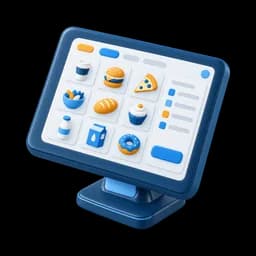
The web restaurant counter shows tables, menu and ticket side by side on a large tablet, and settles the bill.
Printed KOTs
The Windows app on an outlet PC prints tickets to station printers, with first and second backups.
Waiter devices
Install Fininvo ERP on the waiter phones and tablets
Captain mode is part of the Fininvo ERP app on Google Play and the App Store. Give waiters POS-only access so the app opens straight to the restaurant counter. On an Android tablet the restaurant counter keeps the same three tabs as on a phone, with more room for the menu; on an iPad the app runs in iPhone mode.
Be precise
What a restaurant tablet setup does not do
Limits for restaurants in particular, so you can plan the floor before service.
- Phone or tablet orders without internetNot on this deviceWaiter devices need the connection to send orders; drafts wait on the phone.
- Several devices sharing tables offlineNot on this deviceOnly one Windows PC keeps taking orders offline; other devices see them later.
- Printing KOTs from a phone or browserNot on this devicePrinted tickets go through the Windows app acting as the outlet print agent.
- iPad tablet layout in the appNot on this deviceThe app runs in iPhone mode on iPad; use the web counter in Safari for the full layout.
- Split view for the restaurant counter in the appNot on this deviceThe tablet split view is for retail; the restaurant counter keeps its tabs.
- UPI on desktop table billsNot on this deviceTake UPI for table bills on the web counter or a phone instead.
Getting started
Setting up a restaurant on tablets
- 1
Set up the menu
Add dishes with prices, tax and options, and create kitchen stations and routing on the web.
- 2
Draw the floor
Add floors, sections and tables so waiters pick the right table.
- 3
Install the app
Install Fininvo ERP on waiter phones and give them POS-only access.
- 4
Open the kitchen screen
Open the kitchen display on a kitchen tablet, or connect printers to the Windows app.
- 5
Run service
Waiters send orders, the kitchen bumps dishes, the counter settles bills.
- 6
Close the day
Close the shift. Sales, tax and stock are already in the books.
FAQ
Frequently asked questions
Which tablet should a restaurant use for Fininvo POS?
Any tablet with a current browser runs the web restaurant counter and the kitchen display. For waiters, the Fininvo ERP app on Android or iPhone works as a captain app. On iPad the app runs in iPhone mode, so an iPad at the counter is better used with the web counter in Safari.
Can waiters take orders at the table on a phone?
Yes. Captain mode in the Fininvo ERP app lets a waiter pick the table, set the guest count, add dishes with their options and seat numbers, and send the ticket to the kitchen. Lines already sent are marked, so the kitchen never gets the same dish twice.
What happens if the waiter loses Wi-Fi in a corner of the restaurant?
If a save may not have reached the server, the lines are kept on the phone as a draft. Nothing is sent blindly. When the phone reconnects, the waiter sees the draft next to the current order, adds back what is missing and then presses Send, so the kitchen never receives a ticket twice.
Does the tablet POS print kitchen order tickets?
Tickets appear on the kitchen display, which runs in any tablet or screen browser. For printed KOTs, the Fininvo Windows desktop app on a PC in the outlet prints them to network or Windows printers, with backup printers per station.
Can the restaurant keep taking orders if the internet goes down?
Phones and tablets need the connection to send orders. One Windows PC running the desktop app can keep creating orders, printing kitchen tickets locally and settling cash bills offline, and other devices see those orders when the connection returns.
Can guests order from a QR code on the table?
Where QR ordering is switched on, guests scan the table code and send their order. It waits in a staff inbox and reaches the kitchen or the bill only after a staff member accepts it.
14 days free, full access
Take your restaurant orders on tablets
Start the trial, set up your menu, stations and tables on the web, and put the Fininvo ERP app on your waiters' phones. The kitchen and the counter work from the same orders.
Start with a 14-day free Fininvo ERP trial, then add POS counters. Paid plans start after the trial.